
Buttons in Reflys Automations
Buttons make your flows tappable and clear. In Reflys, you can add up to 3 buttons per message (on WhatsApp, Instagram, and Messenger) and up to 3 buttons per card (on Instagram and Messenger), with multiple cards per carousel. This guide explains where and how to add buttons, what each button can do per channel, and exactly where to capture screenshots.
Before you start
- Make sure your channels are connected (WhatsApp, Instagram, Messenger).
- Have a workflow or automation in mind (e.g., FAQ, product discovery, booking).
- If you plan to use AI Trigger, ensure your plan includes AI features.
1 . Create an Automation
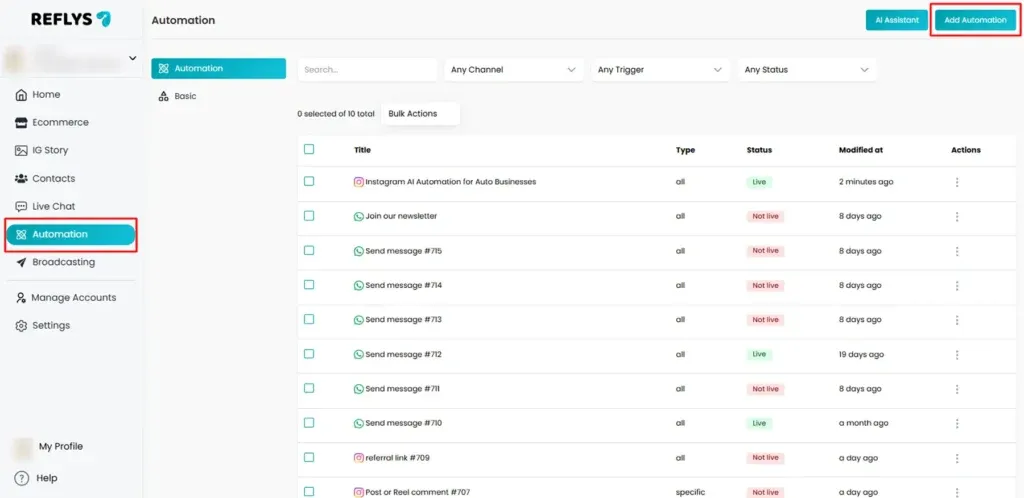
- Go to Dashboard → Automations.
- Click + Add Automation.
2 . Choose a Channel & Trigger
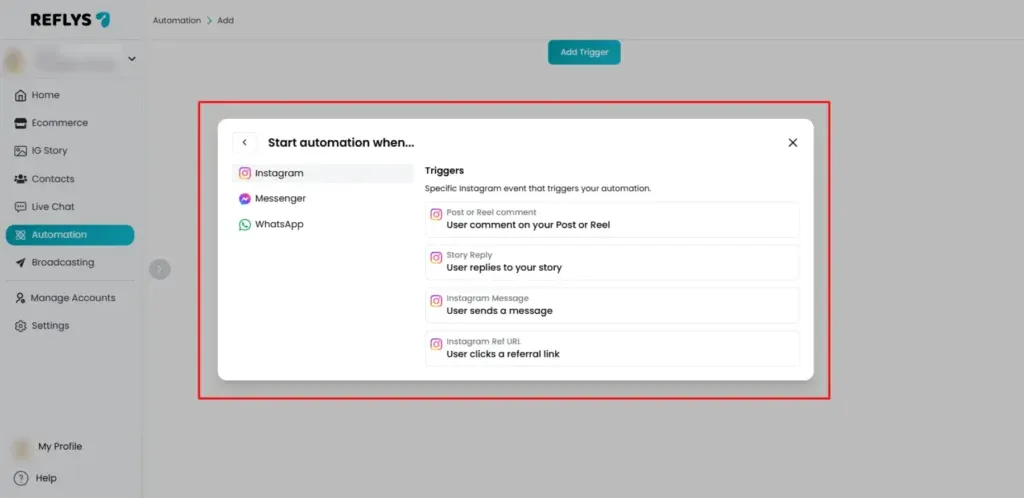
- Start your new automation from scratch and choose a Channel.
- Select WhatsApp, Instagram, or Messenger.
- Choose a trigger relevant to the selected channel (e.g., keyword, DM, quick reply, etc.).
3 . Add a Message Block
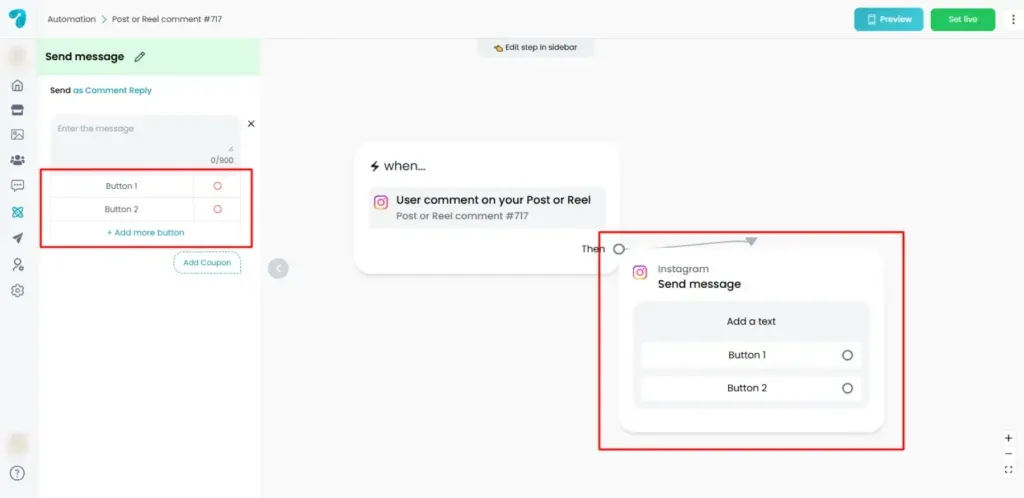
- In the flow builder, click + and choose Message.
- Add your text, media, or variables.
- Click + Add Button beneath the message content.
- (Optional) Click + Add Button again to add up to 3 buttons total.
Tip: Keep button labels short and action‑oriented (e.g., View Products, Talk to Support, Get Email).
4 .What can a Button do?
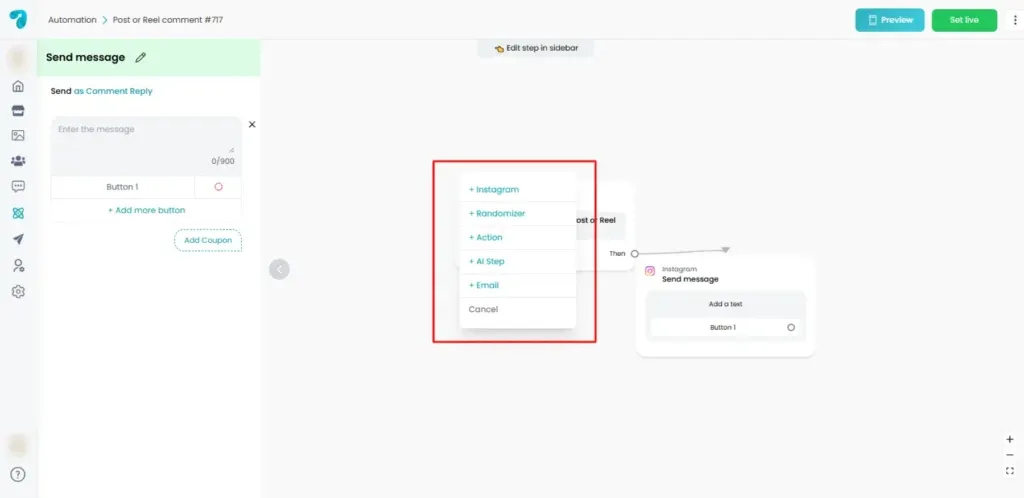
When you add a button, choose where that tap should send the user. Reflys supports the following destinations:
- Channel Message Step
Sends the contact to another message block for the same channel.
Example: From an Instagram message, route to another Instagram message step.
- AI Trigger (plan‑dependent)
Passes control to AI to handle a topic, collect data, or provide a dynamic reply.
- Randomizer
Splits contacts into random paths (A/B testing, load balancing, content rotation).
- Email Step
Routes to an email block to send a confirmation, receipt, or follow‑up via email.
- Open Website (Instagram & Messenger only)
Opens a URL when the user taps the button. Adding a website link is not available on the WhatsApp channel.
5. Add Buttons to a Message Block (All Channels)
- Open your Message block.
- Click + Add Button.
- Enter a Label for the button.
- Choose a Destination (Channel Message Step / AI Trigger / Randomizer / Email Step / Open Website*).
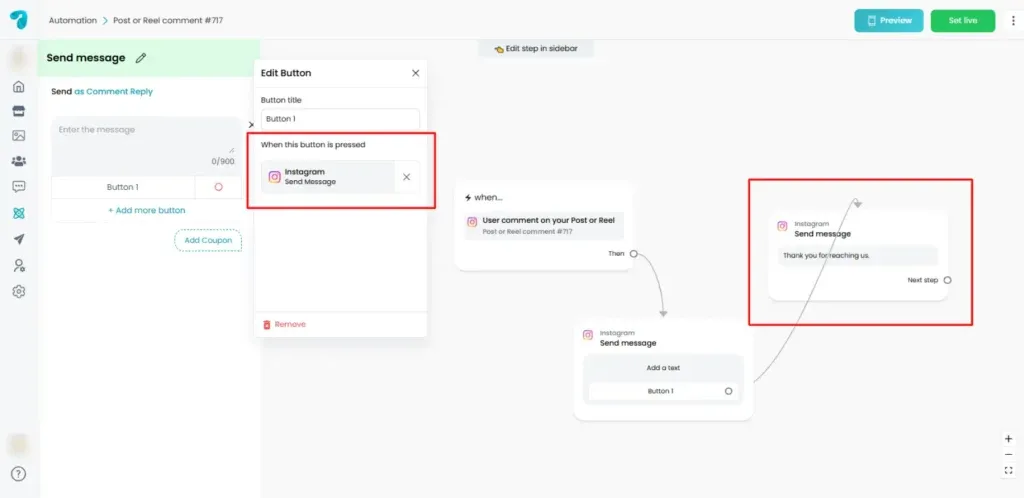
- If Open Website is chosen on Instagram or Messenger, paste the URL.
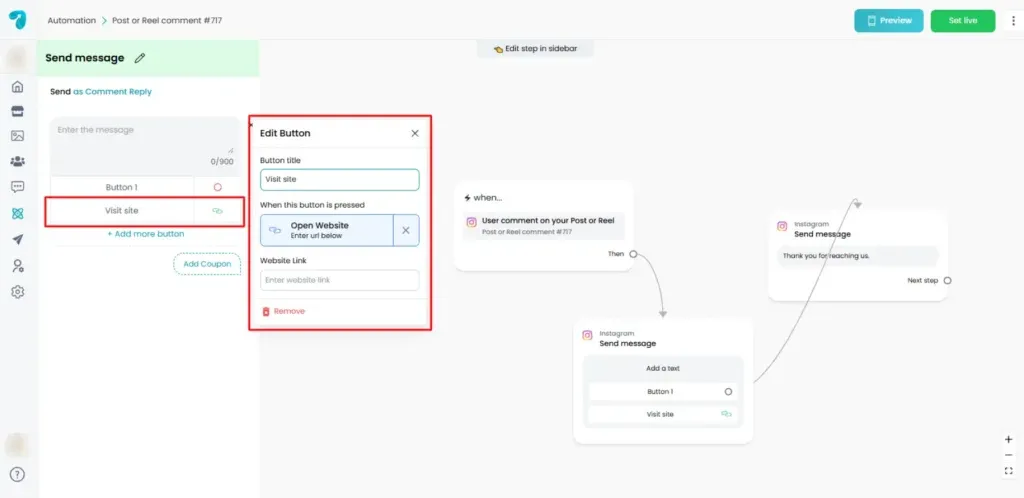
Limit: You can add up to 3 buttons on a single message block.
6 .Add Buttons to Cards (Instagram & Messenger only)
Cards (and carousels) are perfect for product lists, menus, and galleries.
- In automation flow, click + → Card (or Carousel).
- Add Title, Subtitle, Image.
- Click + Add Button under the card.
- Set the Label and choose a Destination (same options as Message buttons, including Open Website on IG/Messenger).
- Repeat to add up to 3 buttons per card.
- Click + Add Card to add more cards to the carousel.
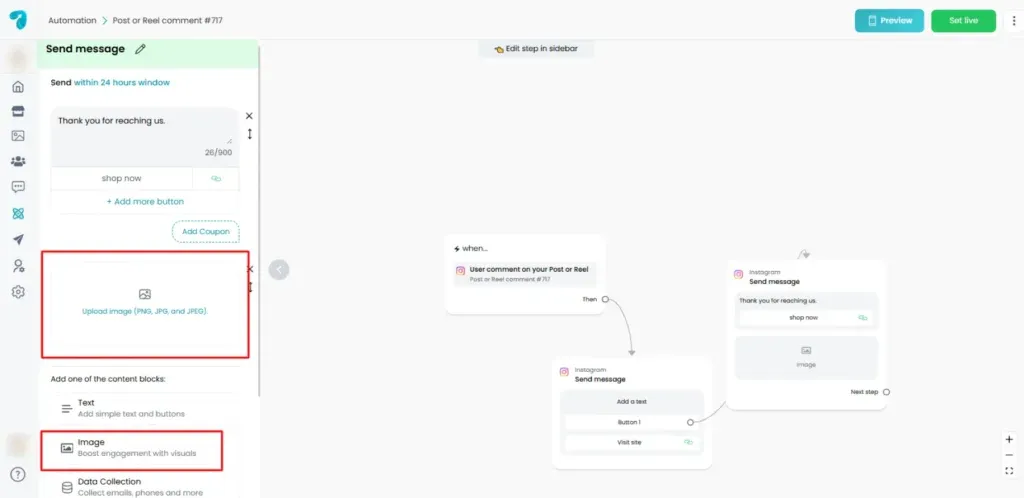
Note: WhatsApp does not support Card blocks.
7 . WhatsApp‑only: Add an Embedded Link (not a button link
WhatsApp doesn’t allow Open Website as a button action. Instead, use the Embedded Link element inside a WhatsApp message.
- In a WhatsApp Message block, click + Add Embedded Link
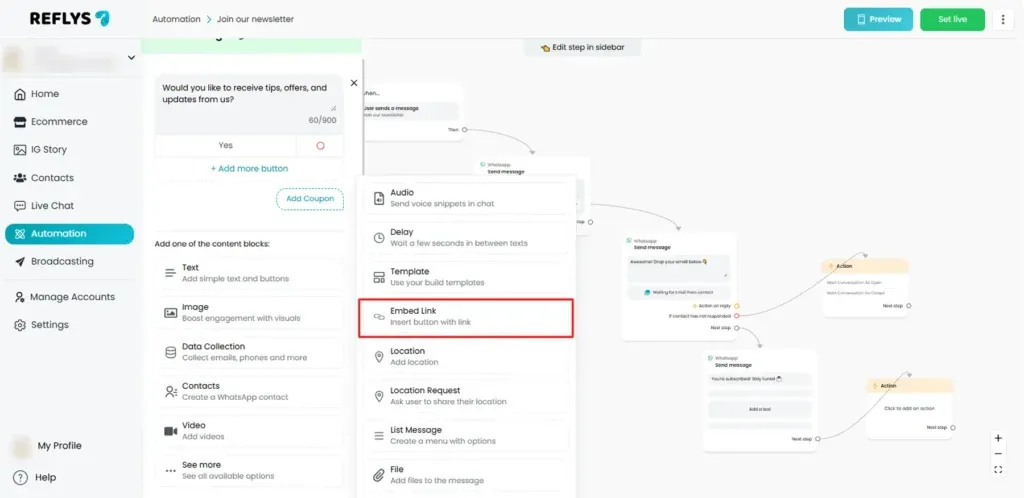
2 .Fill the fields:
- Title (headline above the link)
- Button Title (the tappable text shown with the link)
- URL (the website you want to open)
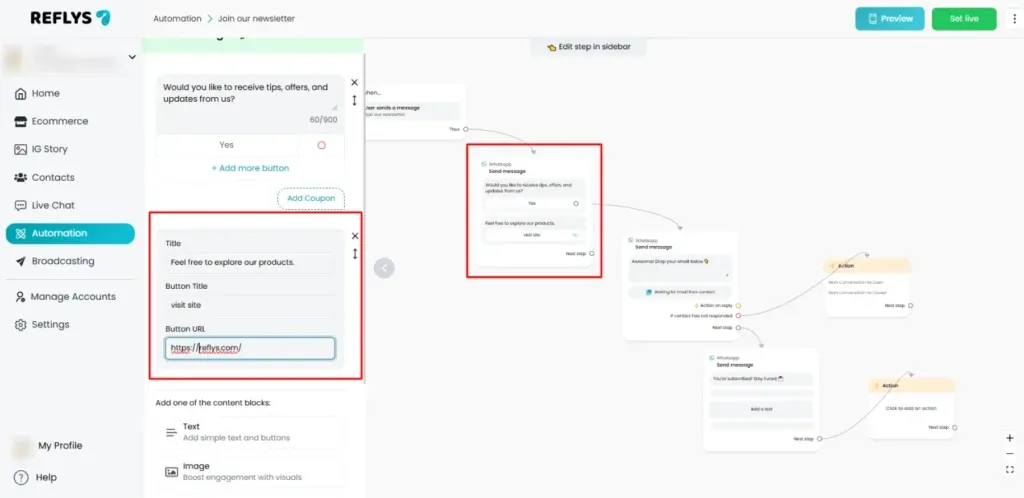
Reminder: On WhatsApp, message buttons cannot open a website. Use an Embedded Link for that purpose.
8. Connect to Create New Steps
When assigning a button destination, you can:
- Create a new step (e.g., New Message, New Email Step),
9 . Best Practices
- Keep labels short (mobile‑friendly and scannable).
- Lead with verbs (e.g., Book Now, See Menu, Contact Support).
- Use consistent destinations so users learn what to expect.
- Don’t overload a message: 2–3 strong choices beat 3 weak ones.
- Test per channel: WhatsApp, Instagram, Messenger; preview each.
- Track outcomes: Pair buttons with tags or goals in later steps for reporting.
10 .Troubleshooting
- I can’t add a link to a WhatsApp button.
Correct—WhatsApp button links aren’t supported. Use an embedded link block in the message. - I don’t see Card blocks on WhatsApp.
Correct—Cards aren’t available on WhatsApp. - Open Website option is missing.
It only appears on Instagram and Messenger buttons/cards. - AI option not visible.
Ensure your plan includes an AI trigger and that the channel is supported. - Can’t add a 4th button.
Limit is 3 buttons per message (and 3 per card on IG/Messenger).