
How to Use WhatsApp Broadcasting in Reflys
Broadcasting on WhatsApp allows you to send a message to multiple people simultaneously. Instead of messaging each contact individually, you can create a single message and send it to multiple users, rather than responding to them individually.
In this guide, we will explain step-by-step how to set up and send WhatsApp broadcasts with Reflys, what you need to know before sending, and the essential rules of Meta to align with their policies
Understanding WhatsApp’s 24-Hour Rule
Before sending messages, it’s important to understand how WhatsApp’s
24-hour session rule
works:
- If a user sent you a message in the last 24 hours, you can reply with a regular message, free of charge.
- If 24 hours have passed since the user’s last message, you can only reach them using a WhatsApp Message Template.
Important Note:
- This is WhatsApp’s rule to protect users from spam. Businesses cannot freely message users after the 24-hour window unless they use a pre-approved message template.
- Even inside the 24-hour window, if you use a message template, Meta (Facebook) may still charge you for starting a new conversation, depending on the message type and category.
You can check the full cost details in Meta’s official WhatsApp Pricing Guide .
Messages You Can Send via Broadcast
When creating a broadcast in Reflys, there are two ways to send your message:
Message Template (for users outside the 24-hour window)
- These are pre-approved message templates by Meta
- You can use these templates even if the user does not respond within 24 hours, once in automation.
- Charges may apply depending on the type of message and your country.
Important Notes Before You Start
- You can send broadcasts to users who have opted in (agreed) to receive messages from your business on WhatsApp. You can either choose contacts already saved in your list or manually add a new WhatsApp number to an existing contact category.
- All templates must be approved by Meta before they can be used.
- You must have an active Business subscription of Reflys to use WhatsApp broadcasting.
- Ensure you have a sufficient balance in your Meta wallet to cover the costs of message templates
How to Create a WhatsApp Broadcast in Reflys
- Follow these steps to send a broadcast in Reflys:
Step 1: Go to the Broadcasting Section
- Log in to your Reflys dashboard.
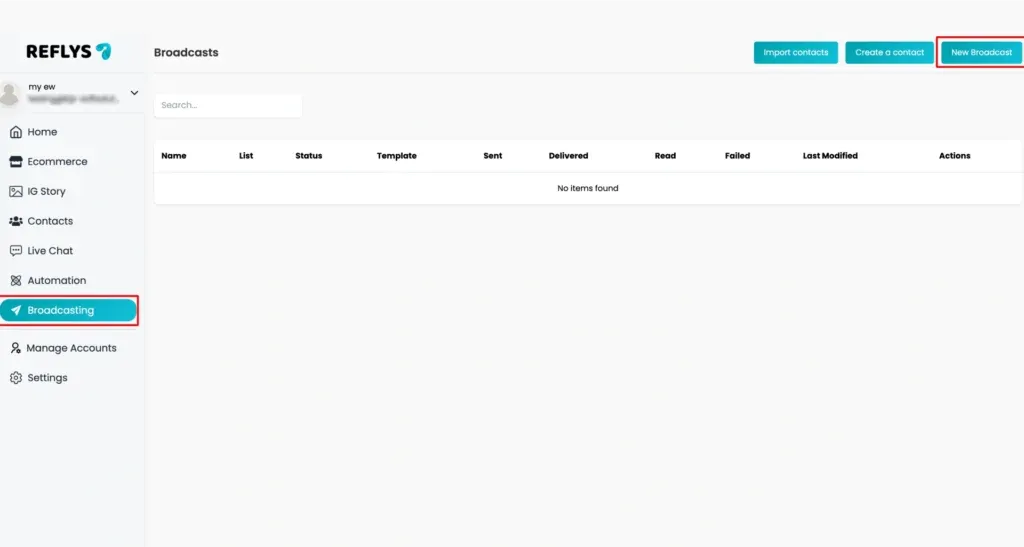
- On the left-hand menu, click Broadcasting.
- Click on the New Broadcast button.
Step 2: Set up Broadcast Settings
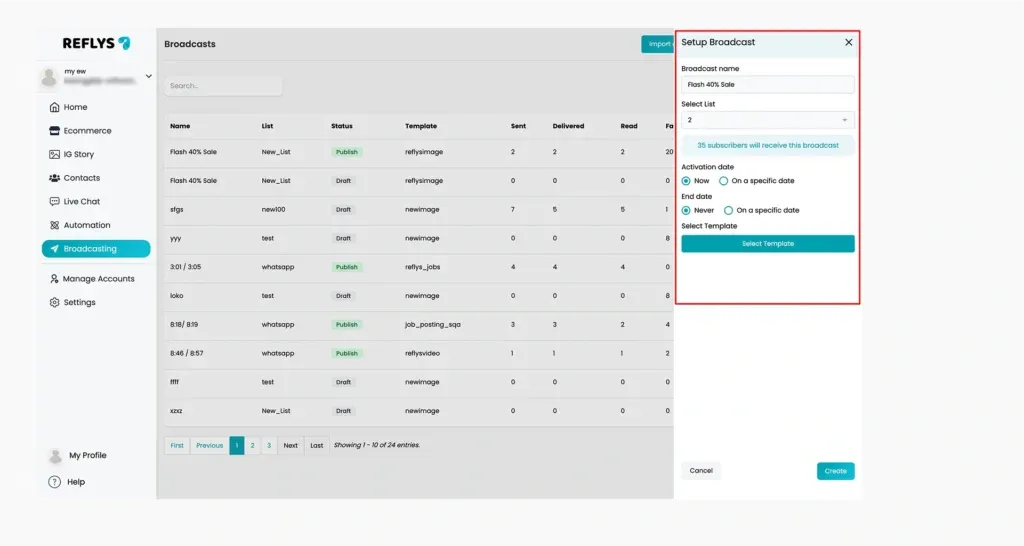
- Enter your broadcast name.
- Select a list from the existing contact list to which you want to broadcast a message.
- You can select:
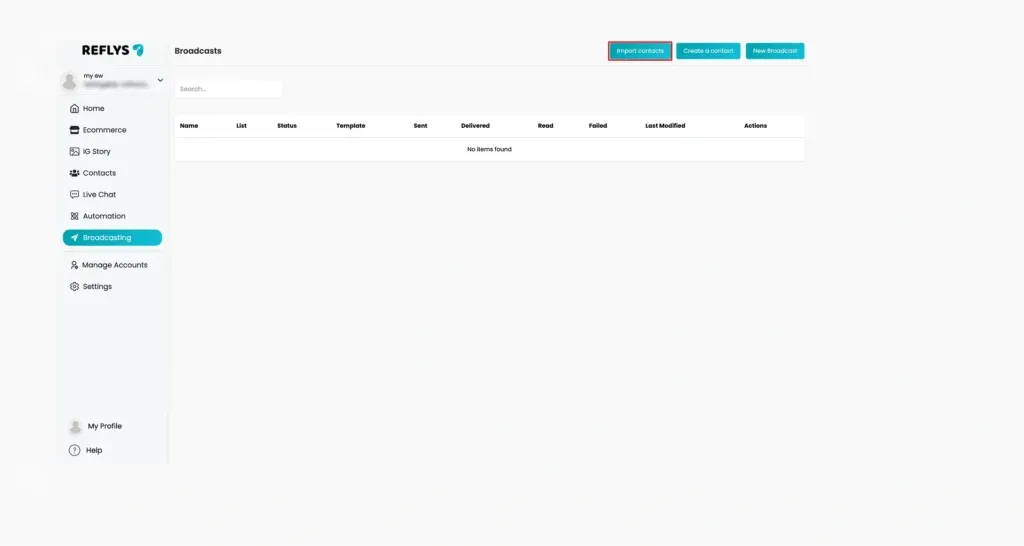
- Import all contacts from sheet
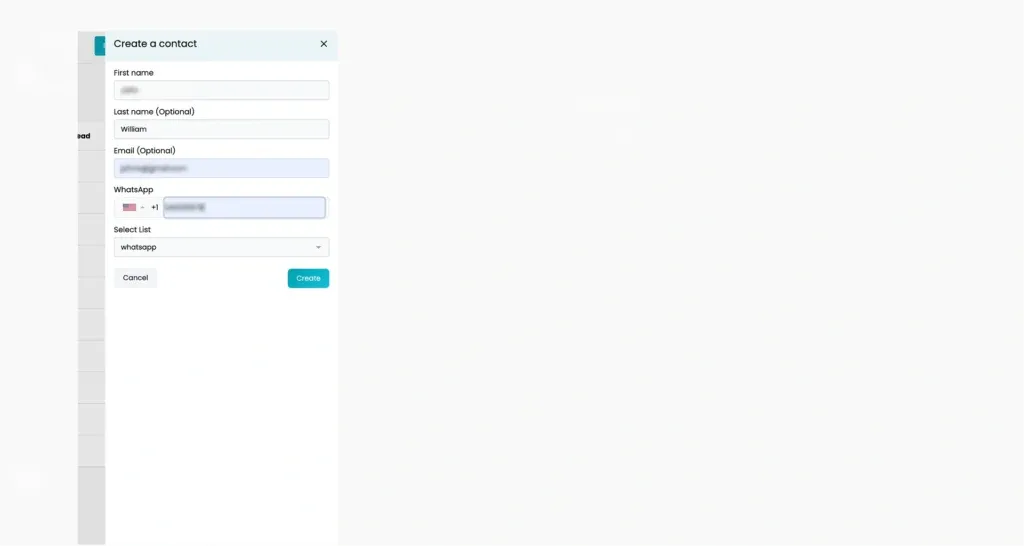
- Create a new contact
- A specific list
- After adding the desired contacts, click on “new broadcast button” fill the required fields add the activation date and end date.
Step 3: Select a Message Template
To start your broadcast, you’ll need to select an approved WhatsApp Message Template. Here’s what to do:
- Pick an existing approved template from the list,
OR - Create a new template (this needs Meta approval, which can take a few minutes to 24 hours).
- Pick an existing approved template from the list,
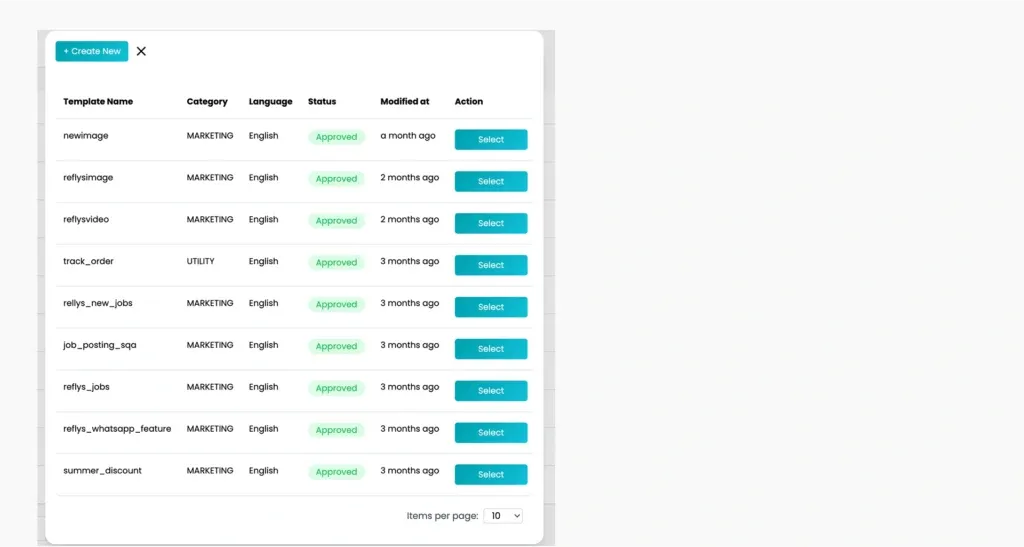
Important Note
You cannot send broadcast messages without using a Meta-approved template.
Step 4: Add Message Content in Flow Builder (If Needed)
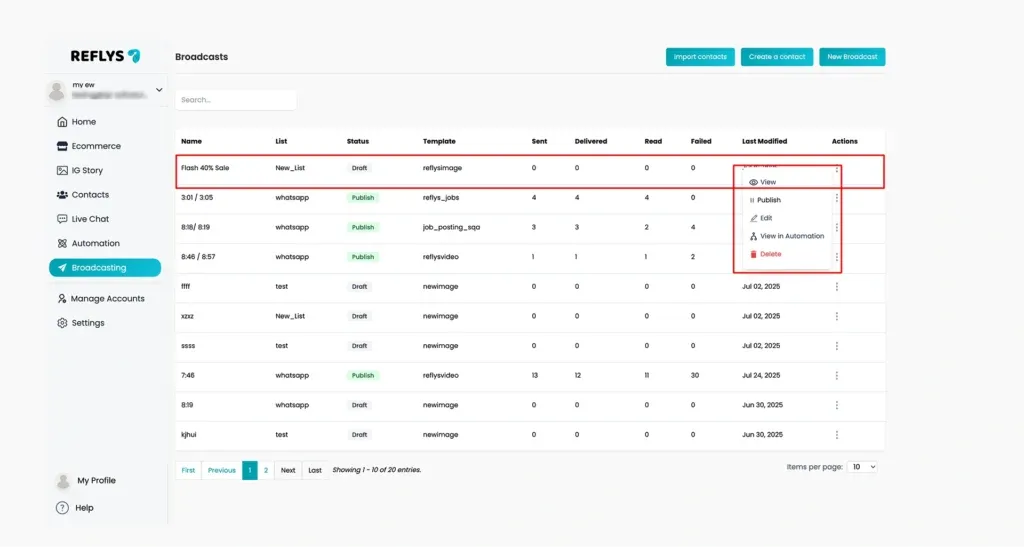
- If your template includes a button (like "View More", "Reply", or "Get Info"), you can be redirected to the Flow Builder.
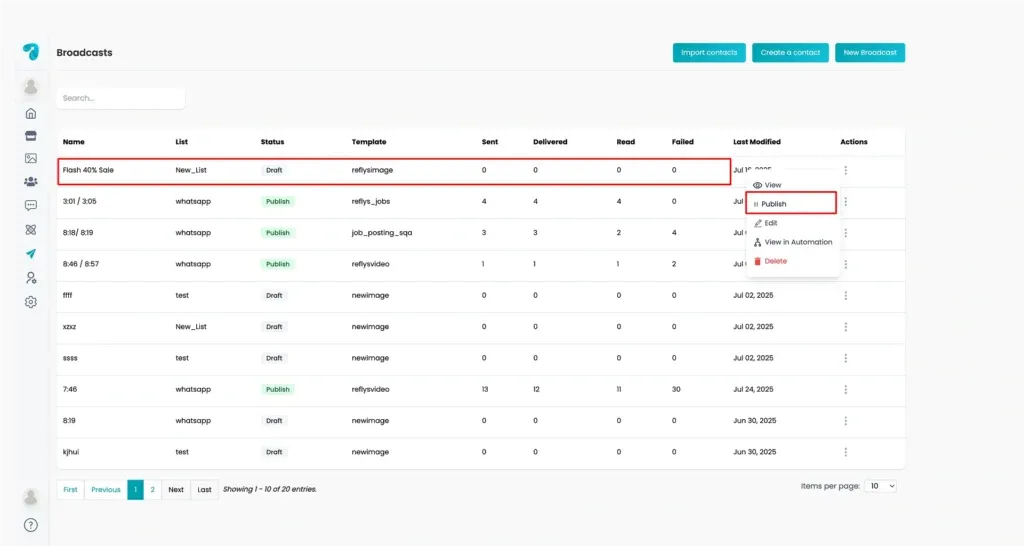
- Choose an option such as view, edit, view in automation, or publish it.
- Another message with text, image, etc.
- An action (e.g., tagging, opening a website)
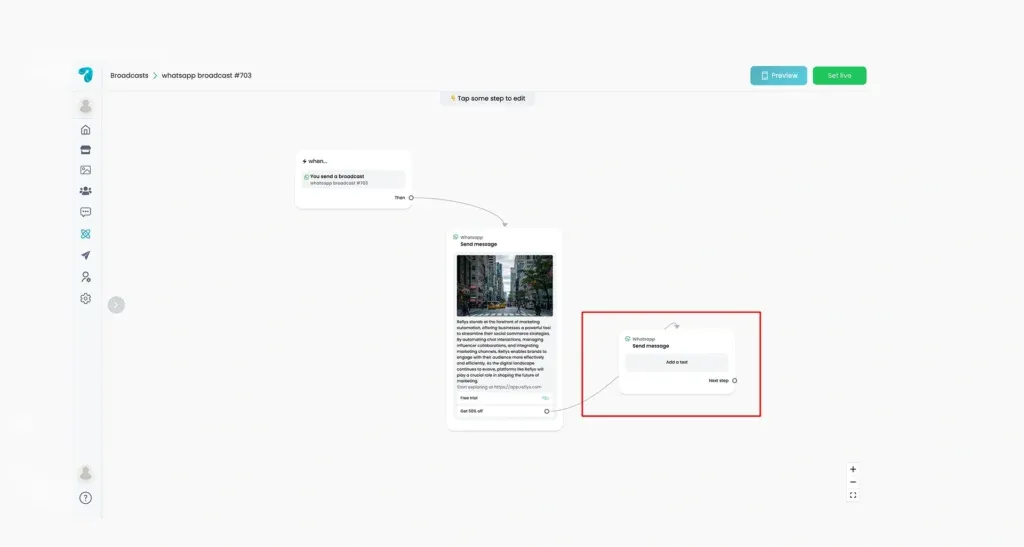
Note:
You can add a regular message after a custom button, as the user will be inside a 24-hour window right after clicking on it. Meta wouldn’t charge you for these messages.
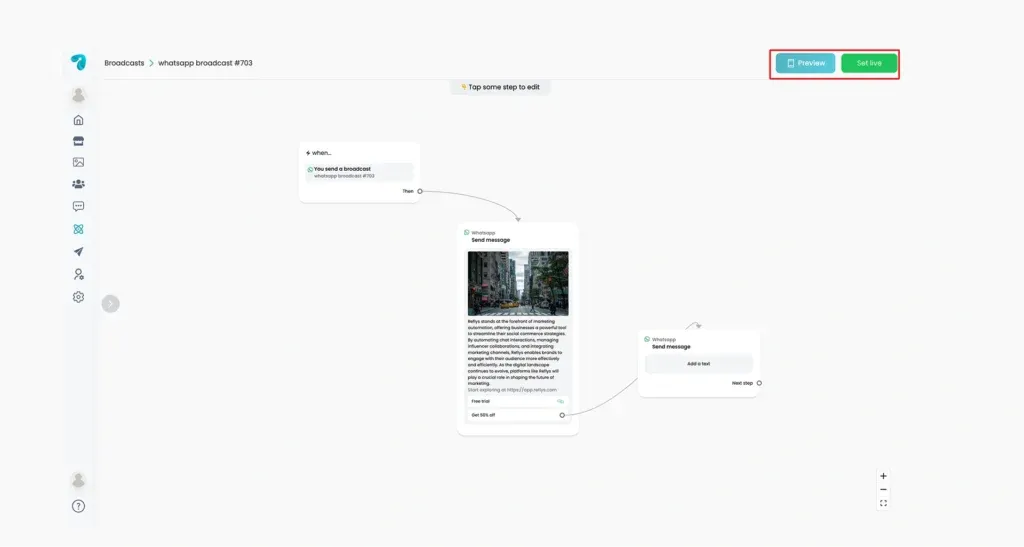
Step 5: Set Live to Save Changes
Once everything looks good:
Click Set Live to save changes.
Step 6: Publish your Broadcast
When you are done with changes, don’t forget to ‘Publish’ your broadcast draft.
Track Broadcast Performance with Live Status Graphs
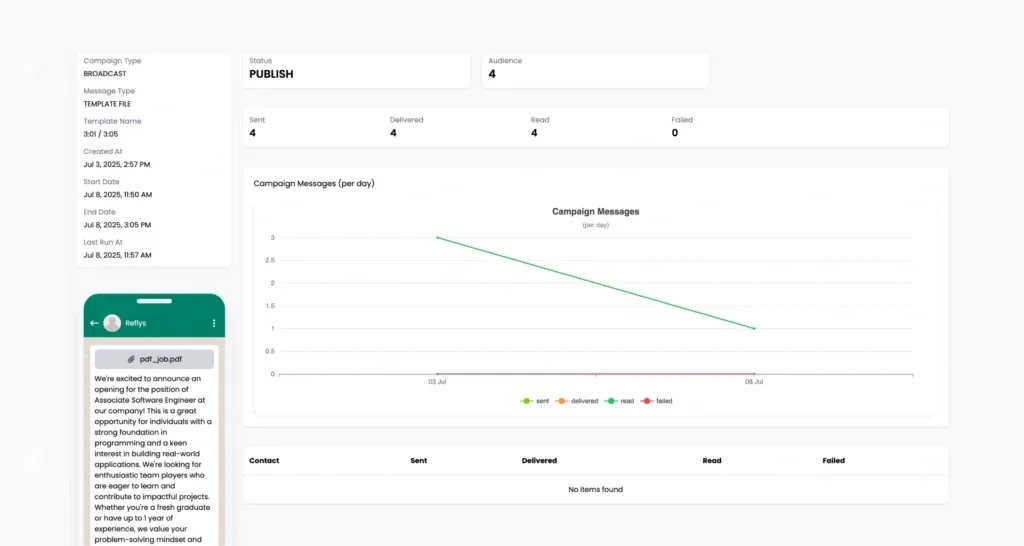
After sending a WhatsApp broadcast through Reflys, you can see the full performance report of your message. This includes how many people:
- Received the message (Sent)
- Successfully got it on their phone (Delivered)
- Opened and read the message (Read)
- Did not get the message (Failed)
- The last campaign run
All this data is shown in a graph format, so you can quickly understand how your campaign is performing.
You can also view details like:
- Message Template Name
- Campaign Type (e.g., Broadcast)
- Message Type (e.g., Template image)
- Start Date & Time
- Status (Pending, Sent, Delivered, etc.)
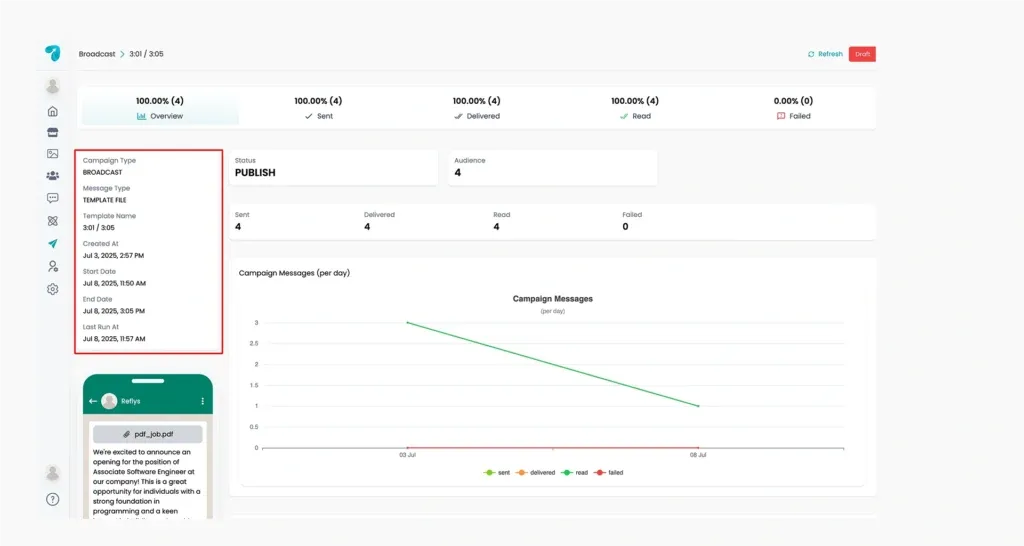
This helps you improve your next broadcast by learning what worked and what didn’t.
Common Problems and Solutions
| Problem | Possible Fixes |
|---|---|
| “Broadcast not sending” | Make sure the template is approved, the user opted in, and you have a balance in your wallet. |
| “Button in template not working” | Go to Flow Builder and connect the button to the next step. |
| “Can’t choose regular message first” | You must first select a template message before regular message options become available. |
If you encounter any issues, please verify your connection settings, Meta’s wallet balance, or contact Reflys support.