
How to Set up TikTok Automation in Reflys: User Sends a Message
A User sends a message trigger will enable you to trigger an automation whenever a person sends you a direct message in your Tik Tok account. It is among the simplest methods of opening up a discussion with your audience. Refllys responds to your messages manually instead of automatically responding to each message, depending on the flow that you design.
This guide explains what this trigger does and how to set it up step by step.
How does the Trigger Work?
When a person sends a message to your TikTok inbox, Refllys detects it and starts the automation you assigned. The reply appears inside TikTok just like a normal chat message. From there, the conversation follows the path you designed.
This trigger is useful when you want to greet new followers, answer common questions, or guide users to a service or offer.
A user opens your TikTok profile
- The user sends you a direct message
- Refllys receives the message
- Your automation starts in the TikTok chat
- The user sees your first reply
- The conversation continues through your flow
Everything happens inside TikTok. The user does not need to leave the app.
How to Set Up the User Sends a Message Trigger?
Follow these steps to create your first automation.
Make sure your TikTok account is connected to your Refllys workspace. If your account is not connected, the trigger will not work.
Step 1:
Log in to your Refllys dashboard.
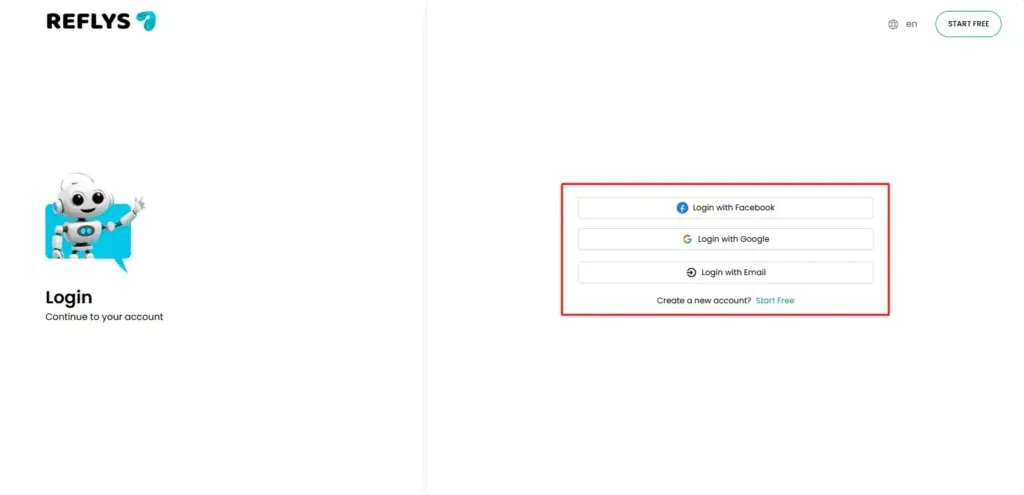
Step 2:
Open the Automation section then click on Add Automation.
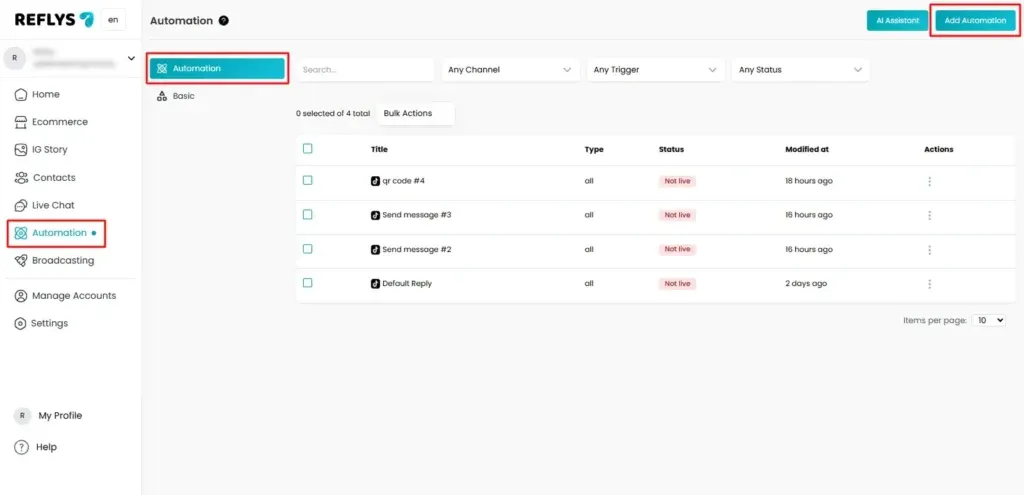
Step 3
The Flow Builder will open. Click Start from scratch to create your trigger and choose TikTok from connected channels. Make sure that your TikTok account is connected with Reflys.
From the trigger list, choose User sends a message.
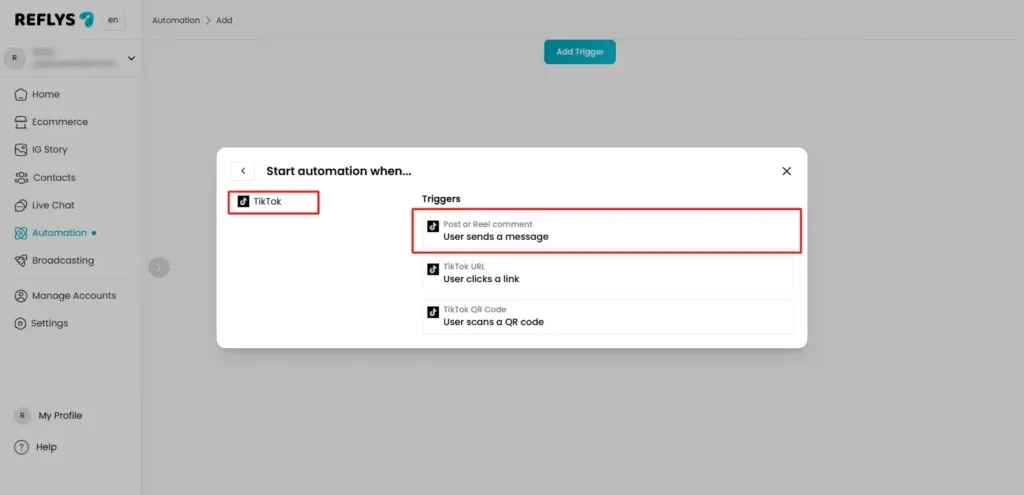
Step 4
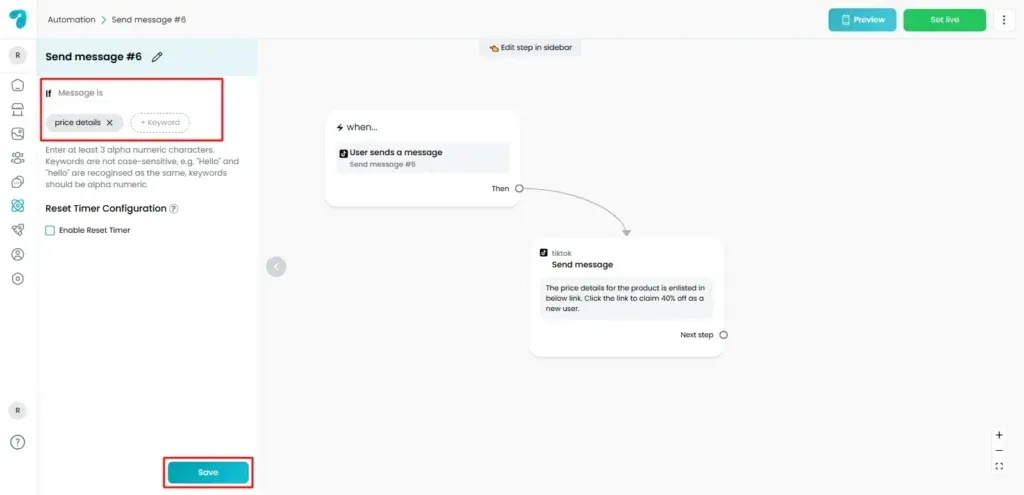
Click the trigger block to open its settings panel.
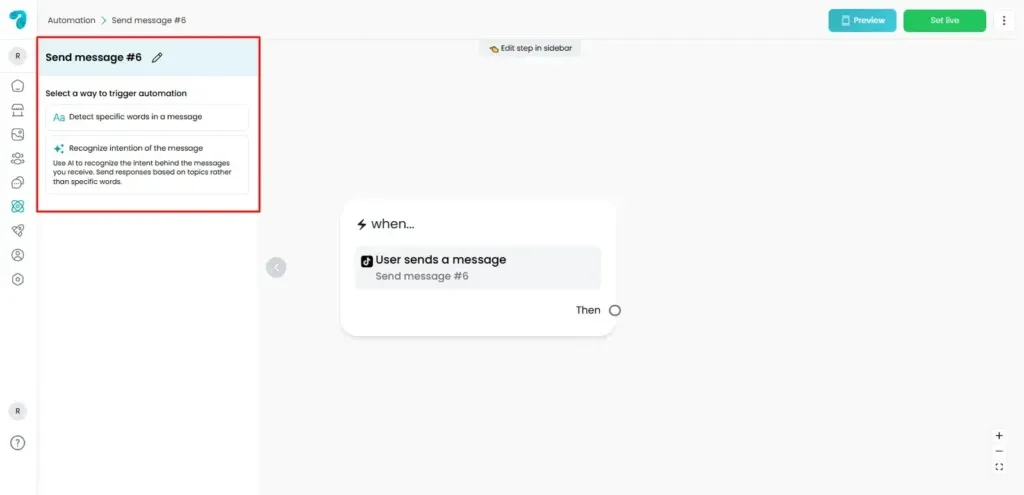
Step 5
Decide how your automation should begin. You can send a greeting message, ask a question, or present options.
Step 6
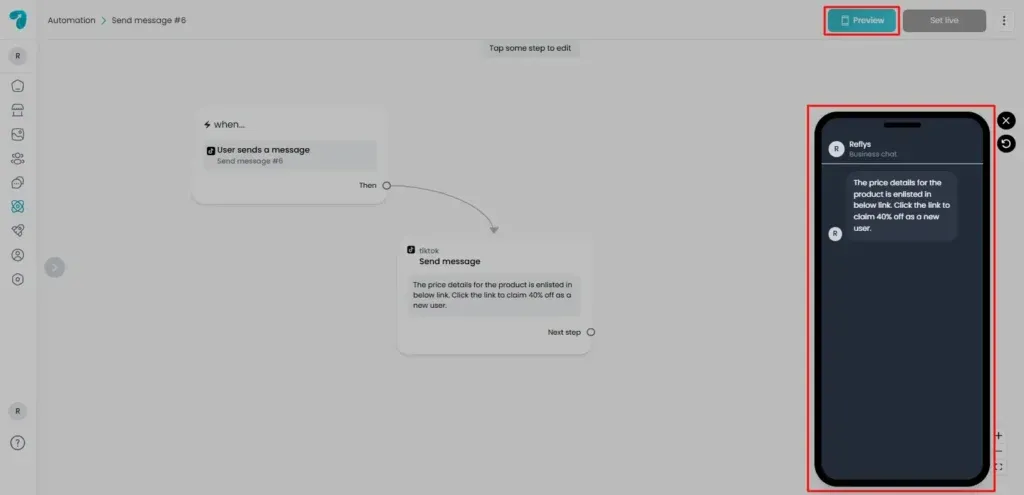
Click Preview to see how your automation will run.
Step 7
Set live to publish the automation
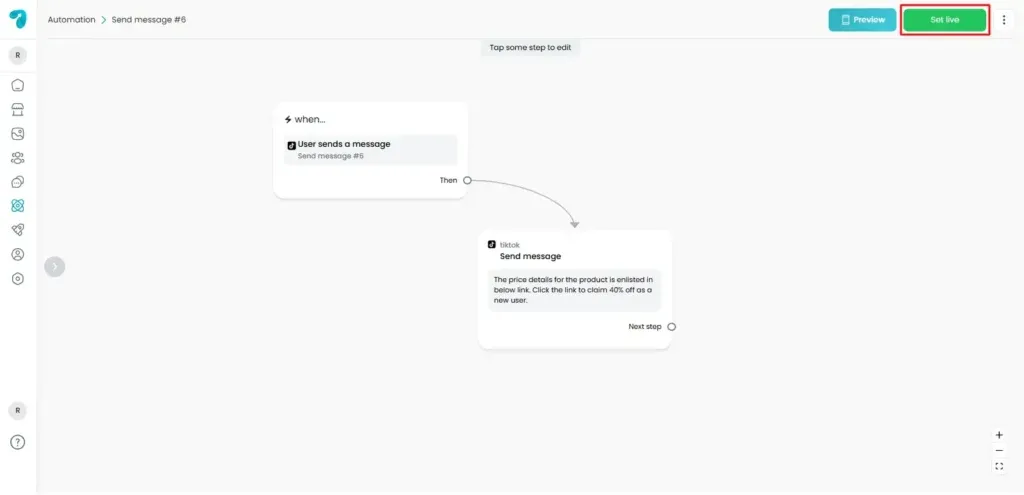
Your trigger is now active. Any new TikTok message will start this automation.
Example Use Case
A follower sends a message saying Hello.
- Your automation replies with a welcome message.
- It asks what the user needs.
- Based on the reply, the flow guides the user to the right answer or service.
This saves time and keeps your response fast.
Tips for Better Conversations
Keep your first reply short and friendly.
- Ask one clear question at a time.
- Offer simple reply options if possible.
- Avoid sending too many messages at once.
These small choices help users stay engaged
Common Troubleshooting
If your automation does not start, check these points.
- Your TikTok account is connected.
- The automation is set live.
- No other trigger is blocking the same message.
Fixing these usually solves the issue.
Conclusion
The User sends a message trigger is the simplest way to start TikTok conversations. Once it is active, every message becomes an opportunity to connect with your audience without manual effort.