
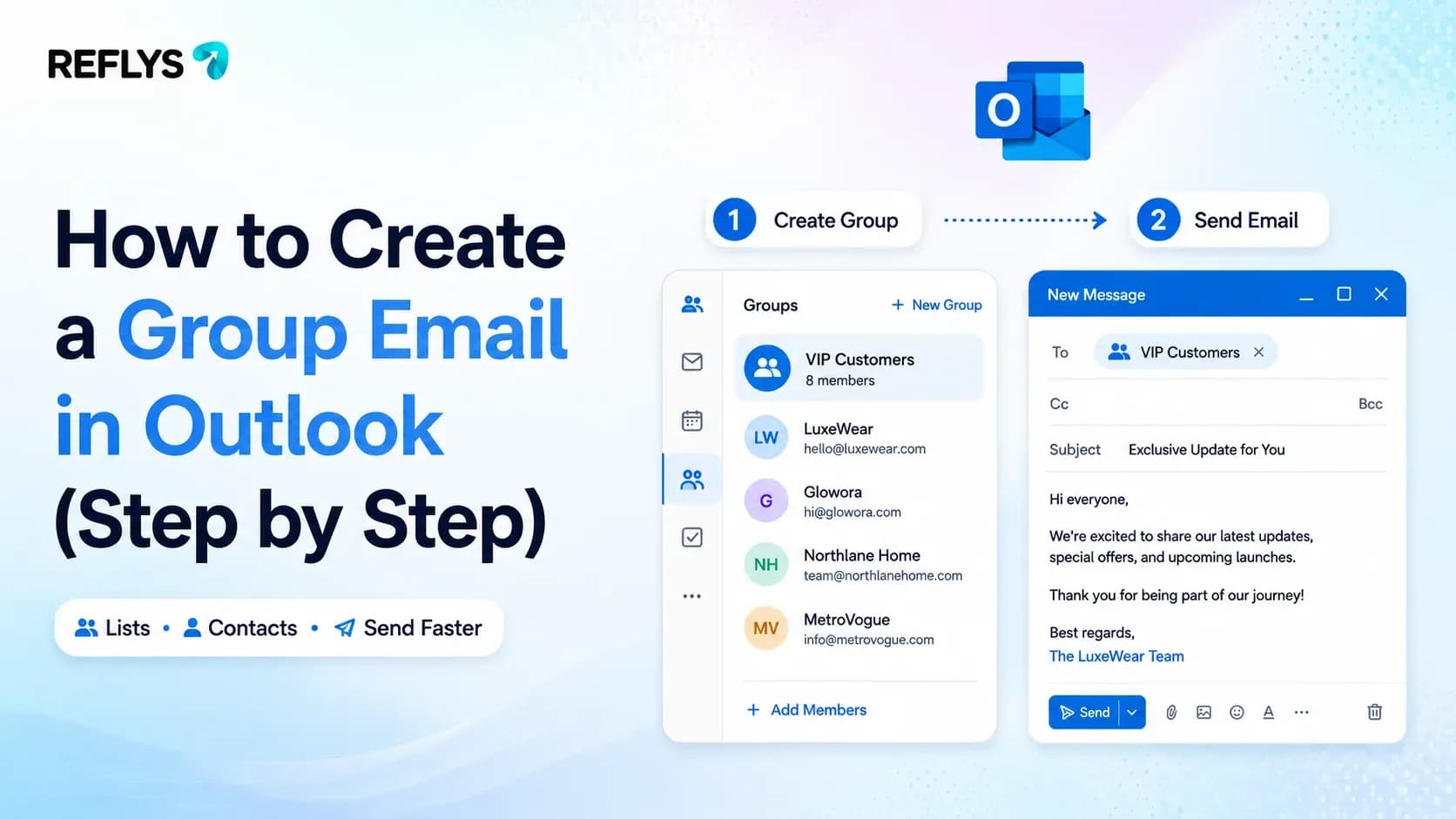
You've got 40 regular customers who always want to know when a product restocks. Right now, you're typing each name into the To field one by one, every time. That's the moment most Outlook users go looking for a group email option. If you're looking for more advanced capabilities, email automation tools like Reflys can handle these tasks for you.
A group email in Outlook — called a contact group (or "contact list" in the newer version) — is a saved set of email addresses you can add to a message by typing one name instead of dozens. You build it once in the People section, then use it in any future email like you would a single contact.
Outlook has offered some version of this since before it was even called Outlook — you might still hear it called a distribution list, which is the older name for the same feature. The steps below cover classic Outlook for Windows, the new Outlook, and Outlook on the web, since the menu wording changed between versions.
Create a Contact Group in Classic Outlook for Windows
If you're on the traditional desktop version of Outlook, contact groups still go by that name.
- On the Navigation bar, click People
- Select Home > New Contact Group
- Type a name for the group — something you'll recognize later, like "Restock Alerts" or "Repeat Customers."
- Select Add Members, then choose contacts from your Outlook contacts, your address book, or type a new email address directly.
- Select Save & Close
To use it, start a new email and type the group's name into the To field. Outlook expands it automatically before you send.

Create a Group Email in New Outlook or Outlook on the Web
Microsoft renamed this feature "contact list" in the newer Outlook interface and in Outlook.com. The steps look a little different, but the result is the same.
- Open new Outlook or Outlook.com and select People in the side panel.
- Pick a contact you want in the group, then right-click and select Add to list
- Choose New contact list and give it a name.
- Add the rest of your contacts from the same menu, or open the list later and add more.
Once saved, the contact list works exactly like the classic contact group — type its name in the To field and every address on the list gets the email.
Contact Group vs. Distribution List: What's the Difference?
They're the same thing at different points in Outlook's history. "Distribution list" was the term in older Outlook versions; Microsoft shifted to "contact group," then more recently to "contact list" in the redesigned interface.
There's one distinction worth knowing: a personal contact group lives in your own Contacts folder and only you can use it. A company-wide distribution list is set up by an IT admin in Exchange or Microsoft 365 and is shared across the whole organization. If you're trying to email "everyone in the company" and don't see an existing list for that, that's an admin task, not something you build yourself.
How Many People Can You Send To at Once?
This is where a lot of store owners run into friction. Outlook treats a contact group as one address in the To field, but the server still expands it to every individual member before sending — and that full count counts against Outlook's sending limits.
For Microsoft 365 accounts, the default cap is around 500 recipients per message (an admin can raise this), plus a daily total across all your emails. Free Outlook.com accounts have a lower daily sending quota, and it can vary based on your account's history [Sending limits in Outlook.com, Microsoft Support]. If your customer list is small, this won't matter. If you're regularly emailing a few hundred people about a sale or restock, you'll want to check your current limit before you hit send on your busiest list.
Can Recipients See Each Other's Email Addresses?
By default, yes — if you put the contact group in the To or CC field, every recipient can see every other address on the list. If you don't want customers seeing each other's emails, put the group in BCC instead. Everyone still gets the message; nobody sees the rest of the list.
Edit, Add To, or Delete a Contact Group
Open People, find the group, and double-click it to add or remove members. To delete it, right-click the group and choose Delete — this only removes the group itself, not the individual contacts inside it, which stay in your Contacts folder.
When a Contact Group Isn't Quite Enough
A contact group works well for a static list you email occasionally — a restock announcement, a monthly update, a heads-up to regulars. Where it starts to strain is anything that needs to happen automatically: a welcome message the moment someone joins your list, a follow-up when a customer abandons their cart, or a discount code that goes out the second an order ships.
Outlook doesn't do any of that on its own — every send is manual, and there's no trigger for "customer just did X." If that's the gap you're hitting, tools built for automated customer email (Reflys is one, alongside plenty of others) pick up where a contact group stops: the message fires based on customer behavior instead of you remembering to send it.
Interested in automating your workflow? Book a schedule demo here: https://reflys.com/schedule-demo
Bottom Line
Building a contact group in Outlook takes a few minutes and is the right call for occasional sends to a list that doesn't change much. It's a manual tool, though — every email still starts with you clicking send. For anything that should go out automatically based on what a customer does, that's a different kind of tool.
If you are ready to automate your communication, you can Start your 7-day trial. today.