
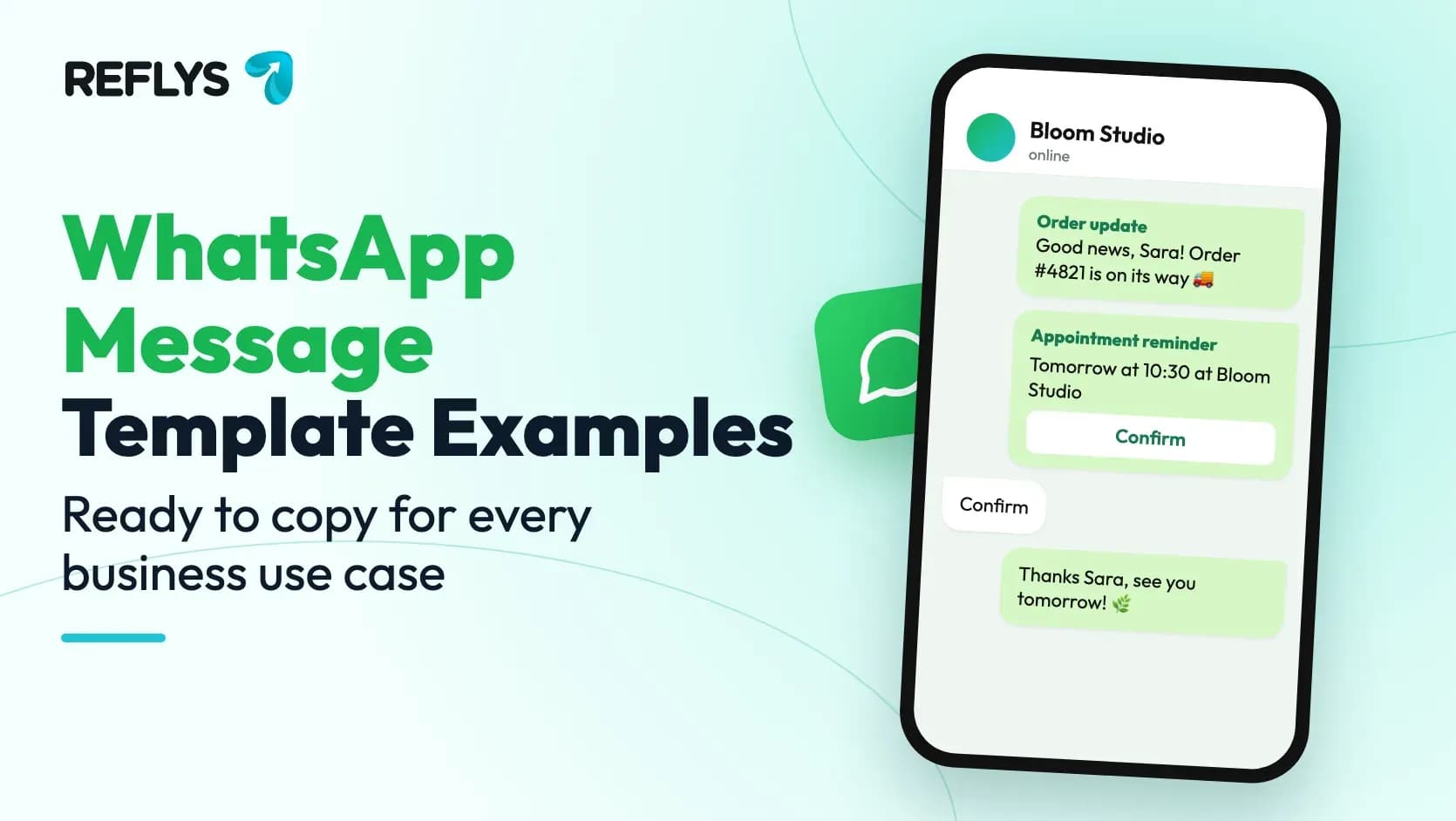
WhatsApp has one rule that catches every business sooner or later: once 24 hours have passed since a customer's last message, you cannot just type a reply. To start or restart the conversation you need a message template, a pre-written message that Meta has reviewed and approved.
Templates sound like paperwork, but they are also what makes WhatsApp useful at scale. Order confirmations, appointment reminders, delivery updates and broadcast offers all run on them. Below you will find ready-to-adapt WhatsApp message template examples for the most common use cases, how Meta's template categories work, tips to get approved the first time, and how to send them with Reflys.
What Is a WhatsApp Message Template?
A template is a message you register with Meta before sending it. It has a fixed structure: an optional header (text, image, video or document), a body of up to 1,024 characters, an optional footer and optional buttons. Parts that change per customer, such as a name or an order number, become variables written as {{1}}, {{2}} and so on.
You need a template whenever you message someone outside the 24-hour customer service window, or when you message someone who has never written to you but agreed to hear from you. Inside the 24-hour window you can reply freely, which is where WhatsApp auto replies do their work.
WhatsApp Template Categories: Utility, Marketing and Authentication
Every template belongs to one of three categories. The category decides how Meta reviews the template and how much each delivered message costs.
- Utility: messages about something the customer already did or asked for, such as an order confirmation, a shipping update, a booking reminder or a payment receipt.
- Marketing: anything promotional, such as offers, new arrivals, re-engagement messages and event invitations. When in doubt, Meta treats a message as marketing.
- Authentication: one-time passcodes for logins and verification, with a fixed format set by Meta.
A utility template that slips in a discount or a "shop now" line will usually be reclassified as marketing. Keep transactional messages purely transactional and put promotions in their own template.
WhatsApp Message Template Examples by Use Case
Each example shows the category, the body with variables, and a suggested button. Replace the brand name and adjust the tone to match how you normally talk to customers.
1. Welcome message
Category: Marketing
"Hi {{1}}, welcome to Bloom Studio! 🌿 You will get first access to new collections and members-only offers here. Reply with a question anytime, we are happy to help."
Buttons: "Shop new arrivals" (link), "Not interested" (quick reply).
2. Order confirmation
Category: Utility
"Thanks for your order, {{1}}! Order #{{2}} for {{3}} is confirmed. We will message you here as soon as it ships."
Button: "View order" (link to the order status page).
3. Shipping update
Category: Utility
"Good news, {{1}}! Order #{{2}} is on its way and should arrive by {{3}}. Tap below to follow the delivery."
Button: "Track parcel" (link).
4. Appointment reminder
Category: Utility
"Hi {{1}}, this is a reminder of your appointment at {{2}} on {{3}} at {{4}}. Need to change it? Use the buttons below."
Buttons: "Confirm" and "Reschedule" (quick replies).
5. Support follow-up
Category: Utility
"Hi {{1}}, we wanted to check that your request #{{2}} was solved. Is everything working as expected now?"
Buttons: "Yes, all good" and "I still need help" (quick replies).
6. Re-engagement offer
Category: Marketing
"We miss you, {{1}}! Here is 15% off your next order with code {{2}}, valid until {{3}}. Your favourites are waiting."
Buttons: "Shop now" (link), "Stop offers" (quick reply).
7. Payment reminder
Category: Utility
"Hi {{1}}, invoice {{2}} for {{3}} is due on {{4}}. You can pay securely with the link below. Already paid? Please ignore this message."
Button: "Pay invoice" (link).
8. Feedback request
Category: Marketing
"Hi {{1}}, how did you like your {{2}}? It takes 30 seconds to tell us, and it really helps a small team like ours."
Buttons: "Loved it", "It was okay", "Not happy" (quick replies).
Want a ready-made set for an online store? Our Shopify WhatsApp integration guide shows how order confirmation and fulfillment templates are sent automatically.
Tips to Get Your WhatsApp Templates Approved
- Pick the honest category. Promotional wording in a utility template is the most common reason for a rejection or a reclassification.
- Give realistic sample values. Meta reviews the template with the examples you provide for each variable, for example "Sara" for a name or "4821" for an order number.
- Do not start or end the body with a variable, and avoid placing two variables next to each other with nothing in between.
- Match the language. Write the body in the language you select for the template.
- Keep it clear and specific. Vague messages such as "Hi {{1}}, {{2}}" look like an attempt to send anything and get rejected.
- Use a clean name in lowercase with underscores, such as order_confirmation_v2, so your team can find it later.
- Avoid spammy patterns: all capital letters, piles of emojis, or threats like "last chance before your account closes".
Approval usually takes a few minutes and can take up to 24 hours. If a template is rejected, fix the reason Meta gives and submit a new version.
How to Create and Send WhatsApp Templates with Reflys
Create the template
In Reflys, go to Settings, then WhatsApp, then Message Templates, and click New Template. Name it, choose the Marketing or Utility category, pick the language, then add an optional header (text, image, video or PDF), the body with variables and sample values, an optional footer and buttons. Click Send To Review, and the status changes to Approved once Meta accepts it. Our help article on using WhatsApp message templates in Reflys walks through each field.
Send it in a broadcast
To message a list of opted-in contacts, create a new broadcast, choose the contact list and the approved template, and send it now or schedule it. Reflys shows how many messages were sent, delivered, read and failed. Read how to send bulk WhatsApp messages at scale before your first large send.
Use it in automations and live chat
Approved templates can also be sent from your automations and from Live Chat, so an agent can reopen a conversation that went quiet more than 24 hours ago. If the template has buttons, you can connect each button to the next step of the automation.
Send order updates automatically
If you run an online store, Reflys can send your order confirmation, payment confirmation and fulfillment templates automatically when the order changes in Shopify, WooCommerce or BigCommerce. These updates currently go out for orders placed with a discount code that Reflys created.
Common Mistakes to Avoid
- Sending marketing templates to people who never opted in. It leads to blocks and reports, which lower your number's quality rating.
- Using one template for everything. Short, specific templates get approved faster and read better.
- Forgetting an opt-out. A "Stop offers" button costs nothing and keeps your list healthy.
- Not testing. Send every new template to your own number first and check the variables and buttons.