
A shopper finds your product on Instagram, taps through to your Shopify store, and has one question before buying: does it come in a larger size? They tap your WhatsApp link, send the question, and wait. If nobody answers for three hours, the tab gets closed and the sale goes to whoever replied first.
Connecting Shopify to WhatsApp fixes that gap. Your store keeps doing what it does well (catalog, checkout, payments), and WhatsApp becomes the place where shoppers ask questions, get offers and hear about their orders. This guide shows how to set it up with Reflys WhatsApp automation, what you can automate today, and the habits that keep shoppers happy instead of annoyed.
Why Connect Shopify and WhatsApp?
WhatsApp is where many of your customers already spend their day. Messages there get opened and answered far more often than email, and a chat feels personal in a way a contact form never does. For a Shopify store that means three practical wins:
- Faster answers before the sale. Sizing, stock, delivery times and returns are the questions that stall a purchase. Answering them in seconds keeps the shopper moving toward checkout.
- Offers people actually see. A discount code sent in a chat lands next to messages from friends and family, not in a promotions folder.
- Reassurance after checkout. A short WhatsApp message confirming the order and later saying it is on its way cuts down on "where is my order?" emails.
What You Need Before You Start
- A Shopify store you can install apps on.
- A WhatsApp number on the official WhatsApp Business API. Reflys connects through Meta, so you do not need a separate provider. If the number is currently used in the WhatsApp Business app, read our guide to WhatsApp Business API providers first, because a number can only live on one of the two at a time.
- A Reflys account. You can start with the 7-day free trial.
How to Connect Shopify to WhatsApp with Reflys
Step 1: Connect your WhatsApp number
In Reflys, open the WhatsApp settings and connect your number through Meta's sign-in window. Once it shows as connected, every incoming WhatsApp message arrives in Reflys, where automations and your team can answer it.
Step 2: Connect your Shopify store
Open Integrations, choose Shopify and approve the connection in your Shopify admin. Reflys can then read your products and collections, create discount codes in your store, and receive order updates from Shopify.
Step 3: Build your first automation
Start with the conversation you get most. For most stores that is a welcome message with a short menu (shipping, returns, sizing, talk to a person), plus keyword replies for words like "price", "delivery" or "refund". The drag-and-drop WhatsApp automation builder lets you add each reply as a block and connect buttons to the next step.
Step 4: Turn on order notifications
Under Order Notifications you choose which WhatsApp template goes out when an order is confirmed, paid and fulfilled. Each one uses a template that Meta approves first (more on templates below). Today these updates are sent for orders placed with a discount code that Reflys created, which is exactly the group you are trying to win back with chat offers.
What You Can Automate on WhatsApp for Your Shopify Store
Answer product and policy questions around the clock
Keyword replies, a default reply for anything unexpected, and AI replies mean nobody waits for a human to wake up. Keep the answers short and end each one with a next step: a link to the product, the size guide or the returns page.
Send personal discount codes in the chat
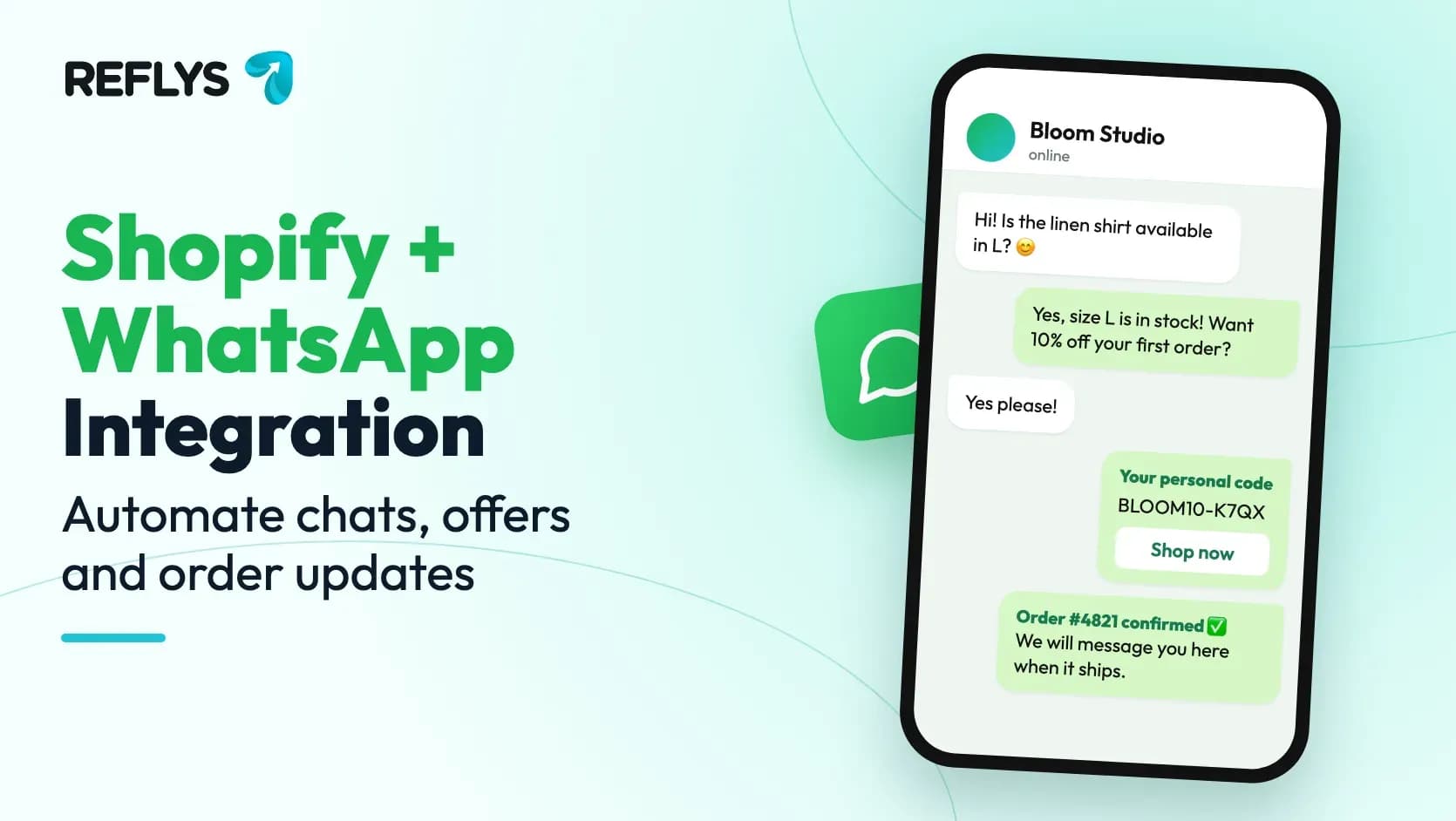
Create a coupon in Reflys and every contact who reaches that step of the automation gets their own code, created in Shopify on the spot. You choose a percentage or a fixed amount, whether it applies to all products, selected products or collections, a minimum order value, start and end dates, a total usage limit and one use per customer. Because each code is unique, you can see which conversations turned into orders.
Keep shoppers updated after checkout
Order confirmation, payment confirmation and fulfillment messages go out as approved WhatsApp templates with a button that opens the shopper's order status page. That button is the simplest answer to "where is my order?": the customer checks Shopify's own tracking page instead of waiting for an agent.
Track sales from conversations
Orders that use a Reflys code show up in your Reflys dashboard with revenue and a country breakdown, so you can tell which automations and offers are paying for themselves.
Hand over to a person when it matters
Some questions need a human: a damaged parcel, a custom order, an unhappy customer. Your team replies from the shared inbox in Reflys, sees the whole conversation, and can let the automation take over again afterwards. Our guide to WhatsApp customer support software covers how to split the work between bots and people.
Bring Instagram and Messenger Into the Same Flow
Many Shopify shoppers find you on Instagram first. With the same Shopify connection, Reflys can show your products as cards in Instagram and Messenger automations, reply to comments with a DM, and send the same personal discount codes there. One store connection, one inbox, and the shopper can move from an Instagram comment to a WhatsApp chat without you rebuilding anything.
Shopify WhatsApp Message Examples
Use these as a starting point and adjust the tone to your brand.
- Welcome: "Hi! Thanks for messaging StyleHub. Tap an option: Shipping, Returns, Sizing, or Talk to us."
- Shipping question: "We ship in 1 to 2 business days and delivery usually takes 3 to 5 days. Want 10% off your first order? Tap Get my code."
- Discount step: "Here is your personal code: STYLE10-K7QX. It works on everything in the store until Sunday."
- Order confirmation (template): "Hi {{1}}, thanks for your order #{{2}}! We will message you here when it ships." with a "View order" button.
- Fulfillment (template): "Good news {{1}}, order #{{2}} is on its way. Track it with the button below."
For more wording ideas, see our collection of WhatsApp message template examples.
Make It Easy for Shoppers to Start the Chat
The automations only help if people can reach you. Put a click-to-chat link in your store header or footer, on the product page next to the buy button, in your Instagram bio and on your packaging. You can create one in a few seconds with our free WhatsApp link generator, including a pre-filled first message such as "Hi, I have a question about an order". If you prefer a floating button, follow our guide to adding a WhatsApp button to your website.
Best Practices for Shopify WhatsApp Automation
- Ask before you market. Only send promotional templates to people who agreed to hear from you on WhatsApp, and make opting out easy.
- Keep the first reply useful. "Thanks, we will get back to you" is not an answer. Give the shipping time, the return window or the size guide straight away.
- Use buttons instead of open questions. Three clear buttons get more replies than "How can we help?".
- Test every automation on your own phone before it goes live, including the discount code and the order status button.
- Review the numbers weekly. Look at which keywords people send most and which codes get used, then improve one reply at a time.