
Mailchimp Integration Guide for Reflys
Go to Settings > Integrations (under Extensions) and click Connect on the Mailchimp card. In the Before you connect Mailchimp window, click Continue.
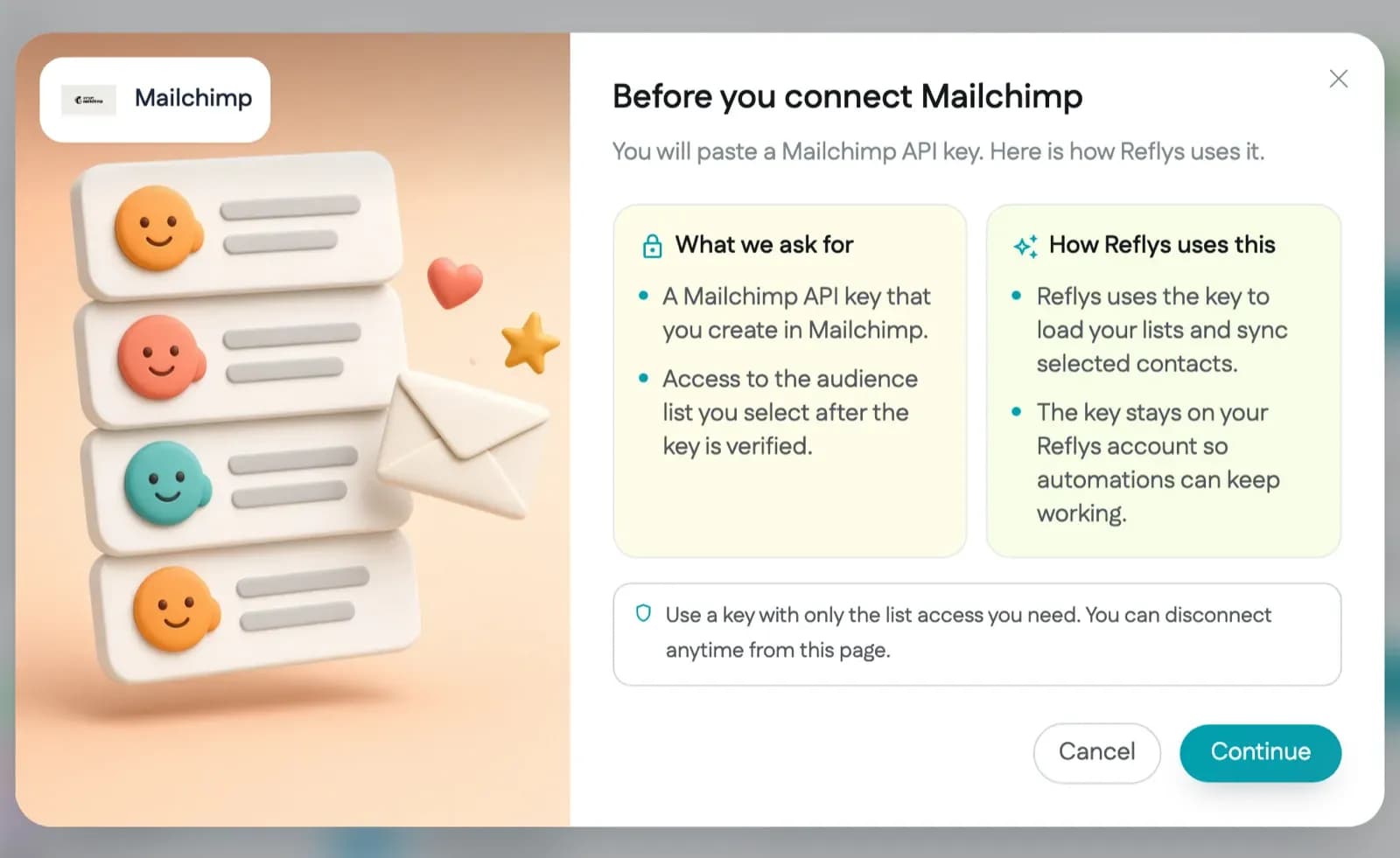
Enter your Mailchimp API key in the API Key field, then click the Connect button. After Reflys checks the key, choose an audience under Select List and click Save.
How do I find my Mailchimp API key?
Log in to your Mailchimp account and navigate to https://admin.mailchimp.com/account/api. In the Your API keys section, click Generate a key.
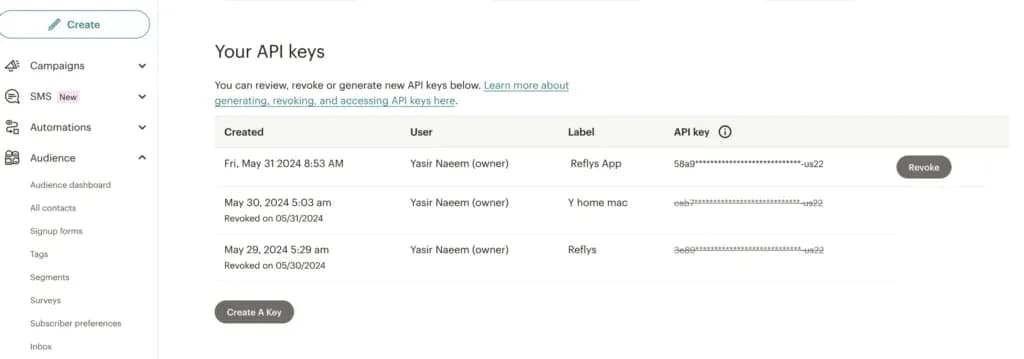
You will be asked to provide a name for your API key. Enter a descriptive name and click the Generate Key button. Copy your newly generated API key.
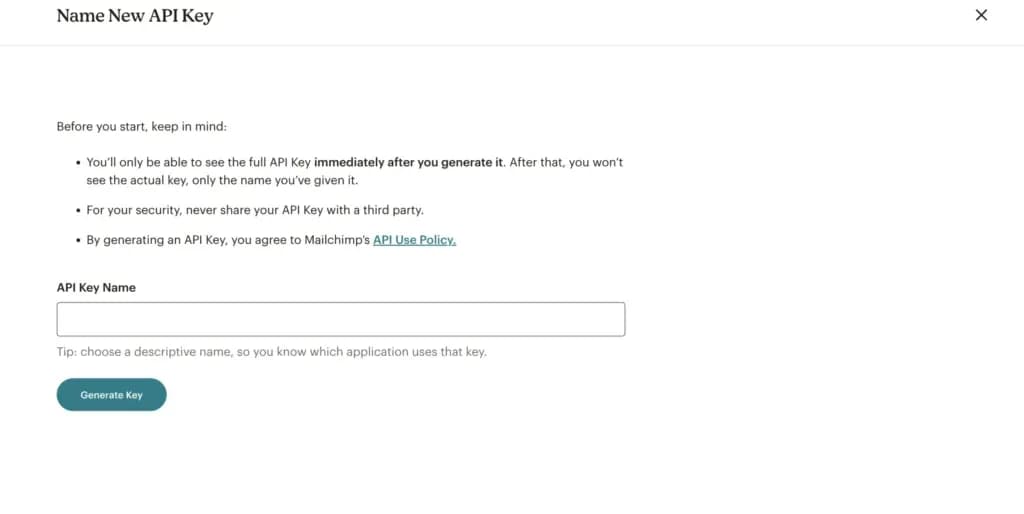
Now, use the API key to connect your Mailchimp account.
What the Mailchimp integration does
Reflys adds contacts to the Mailchimp audience you pick under Select List, with the status subscribed. If a contact was sent before, Reflys updates their existing member record. These fields are sent:
- Email address
- FNAME: the contact's name
- LNAME: the contact's username (social handle)
- PHONE, when Reflys has a phone number
Contacts are sent when they are created in Reflys and when they answer a data collection step in an automation. Because members are added as subscribed, only sync contacts who agreed to hear from you by email.
This card, under Settings > Integrations, syncs contacts. Sending automation emails through Mailchimp Transactional (Mandrill) is a separate connection under Settings > Email, on the Mailchimp (Mandrill) tab.
Before you start
- Integrations are included in the Pro and Business plans. On a plan without integrations, the card shows an Upgrade button instead of Connect.
- You need the Owner or Admin role in Reflys. Other roles do not see the Connect and Disconnect buttons.
- At least one audience in Mailchimp. After Reflys checks your key, your audiences appear under Select List. Choose one and click Save.
Troubleshooting
- "Enter valid mailchimp key": Mailchimp did not accept the key. Mailchimp keys end with a data center code such as -us21, which Reflys uses to reach your account. Copy the whole key, including that ending.
- "Select List" shown in red: choose an audience before you click Save.
- No new members in Mailchimp: check that Enable Sync is on for the Mailchimp card.