
How to Connect Instagram with Reflys
If you want to automate your Instagram DMs, set up chat flows, or manage your Instagram inbox directly through Reflys, the first thing you need to do is connect your Instagram account with Reflys.
If your Instagram is a personal account, it won’t work. You’ll need to switch it to a professional account (Business or Creator) to connect it with Reflys.
Let’s explore how to connect an Instagram account with Reflys in just a few simple steps.
Step 1: Go to Instagram Settings in Reflys
- Log in to your Reflys dashboard.
- On the left side menu, click on Settings > Channels.
- Under Channels, find and click on Instagram.
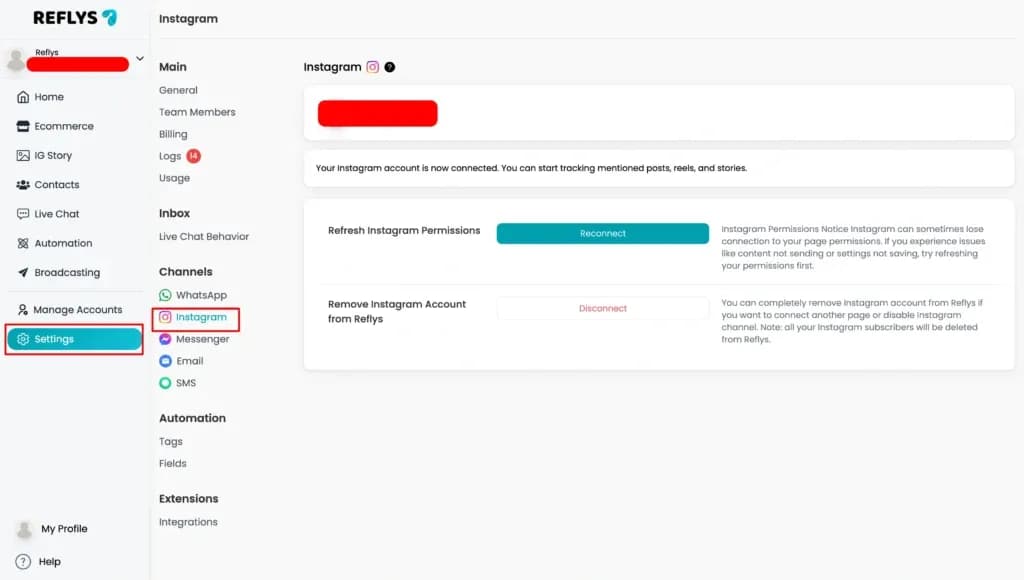
You’ll see a button labelled 'Connect with Instagram.'
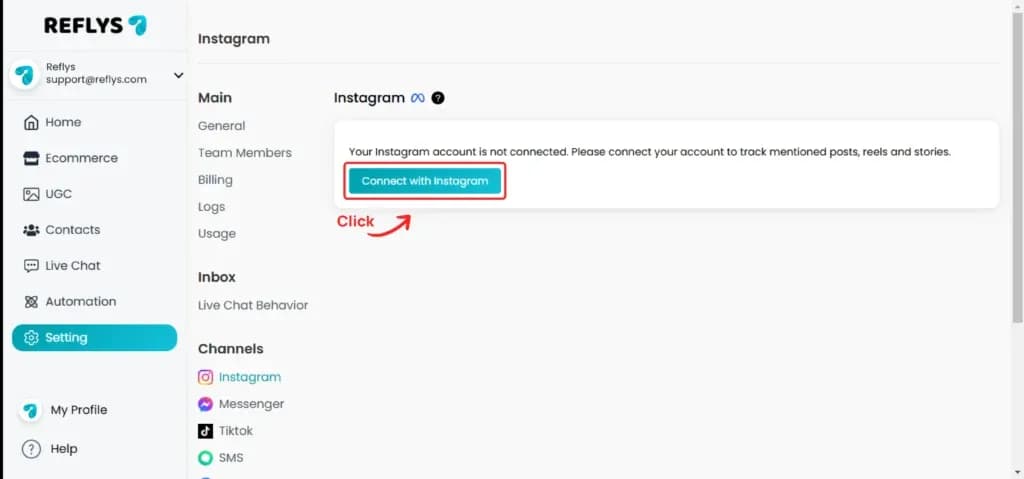
Click that button to continue.
Only owners and admins can connect Instagram. If you've reached your plan's channel limit, the button shows an upgrade badge and Reflys asks you to upgrade instead of starting the connection.
Step 2: Log in to Your Instagram Account
Once you click "Connect with Instagram," Reflys takes you to Instagram in the same tab.
If you're not already logged into your Instagram, you'll see a login page.
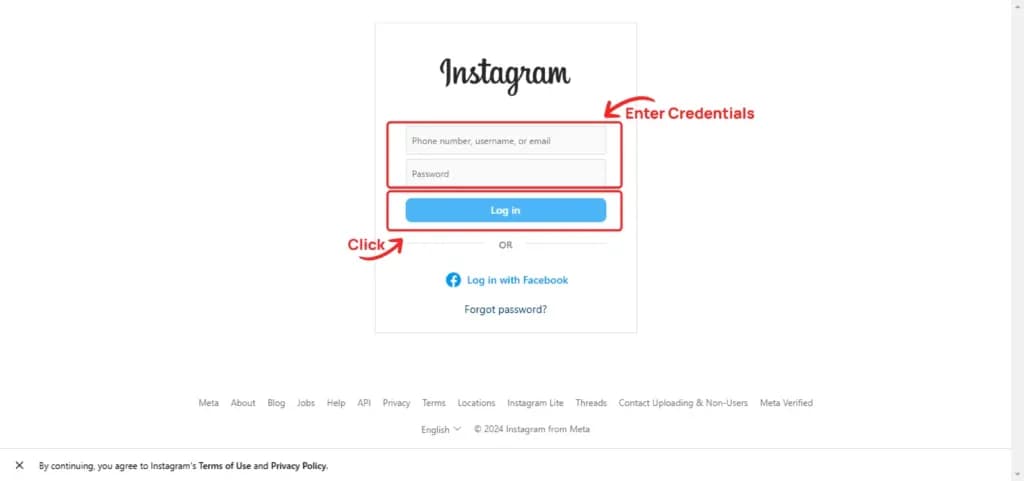
- Enter your Instagram username and password, then click Log In.
If you're already logged in, Reflys will skip this step.
Step 3: Confirm Account Access
- After you log in, Instagram asks you to allow Reflys to access your Instagram account.
Instagram lists what Reflys is asking for: your basic profile info, and permission to manage your messages and your comments. You don't need a Facebook Page.
Double-check that it's the correct account.
Allow access to continue. Instagram then sends you back to Reflys.
Step 4: Finish Connection in Reflys
After confirming your accounts, Reflys will complete the integration process.
Your Instagram username appears at the top of the page, with the message:
“Your Instagram account is now connected. You can start tracking mentioned posts, reels, and stories.”
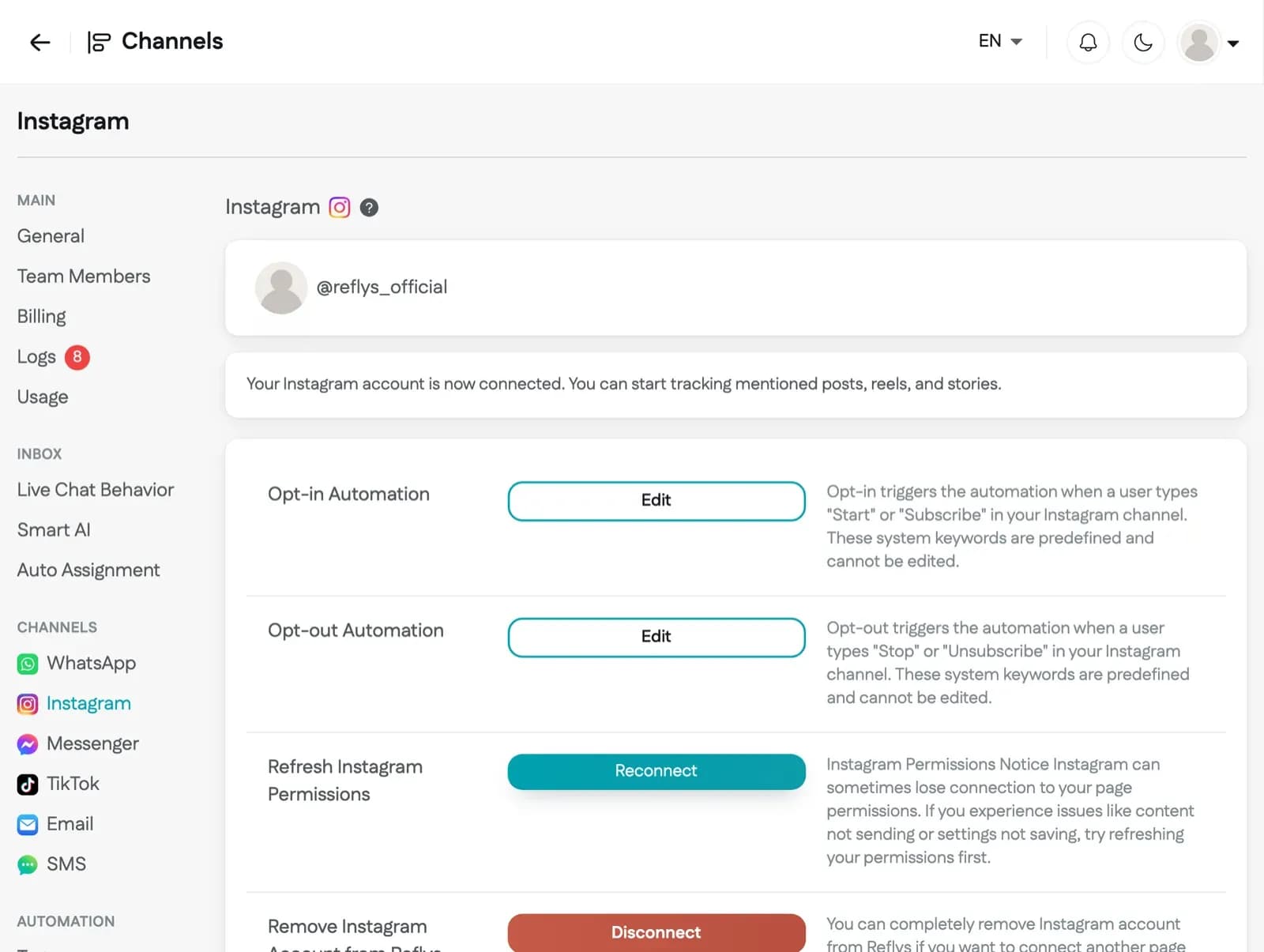
If everything goes smoothly, Reflys will automatically fetch your Instagram inbox, message history, and other available features.
If you see "This business account is already in use.", that Instagram account is already connected to a different Reflys brand. If messages don't show up in Reflys, open the Instagram app and turn on Allow access to messages under Settings and activity > Messages and story replies > Message controls.
The Instagram settings page also shows Opt-in Automation and Opt-out Automation, Refresh Instagram Permissions with a Reconnect button, and Remove Instagram Account from Reflys with a Disconnect button.
What Happens After Connection?
Once your Instagram is connected to Reflys:
- You can automatically reply to DMs using chat flows.
- You can build automations to respond based on keywords.
- You can manage all incoming messages in the Reflys Live Chat panel.
- You can track engagement, reply times, and user behavior.
- You can run campaigns with quick replies, story replies, and more.