
Brevo Integration with Reflys: Installation Guide
Go to Settings > Integrations (under Extensions) and click Connect on the Brevo card. In the Before you connect Brevo window, click Continue. The API Key field appears on the card.
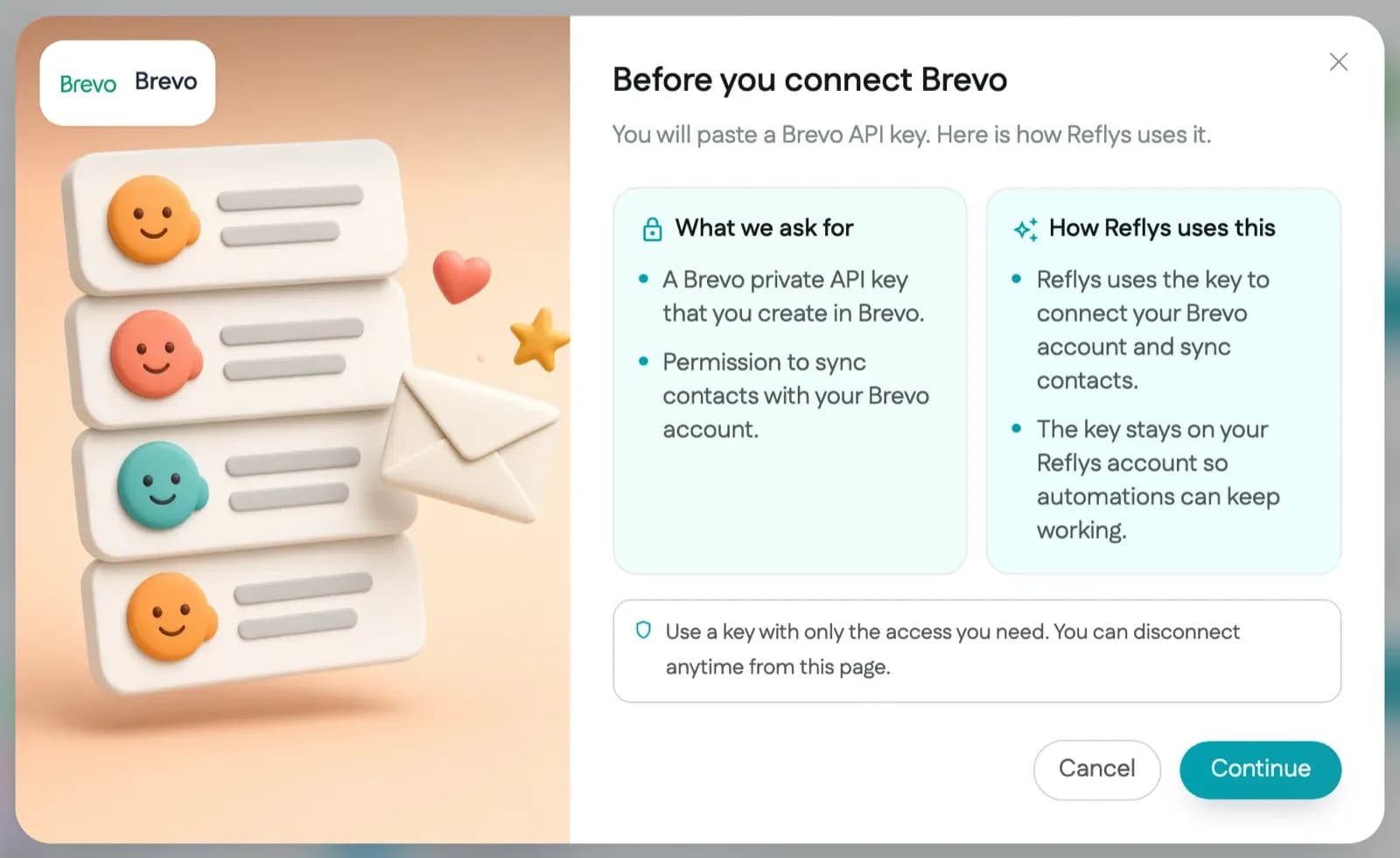
You will need an API key to connect your Brevo account.
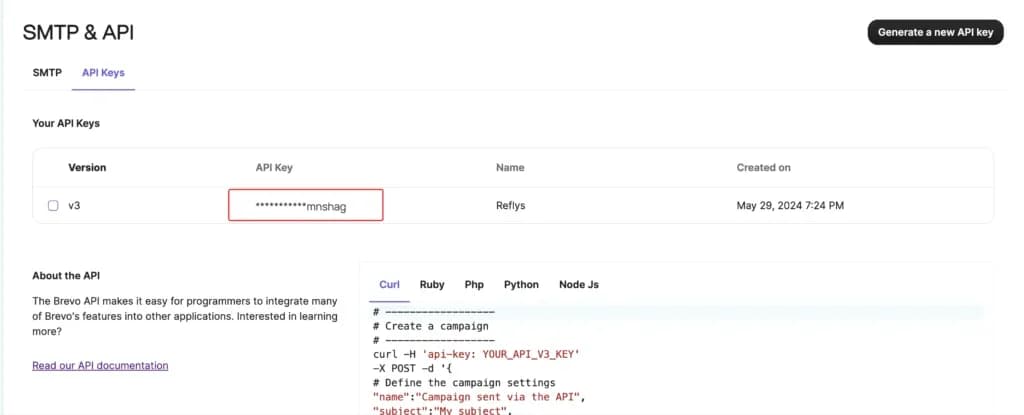
To find your API key, log in to your Brevo account and navigate to https://app.brevo.com/settings/keys/api, then click on Generate a new key.
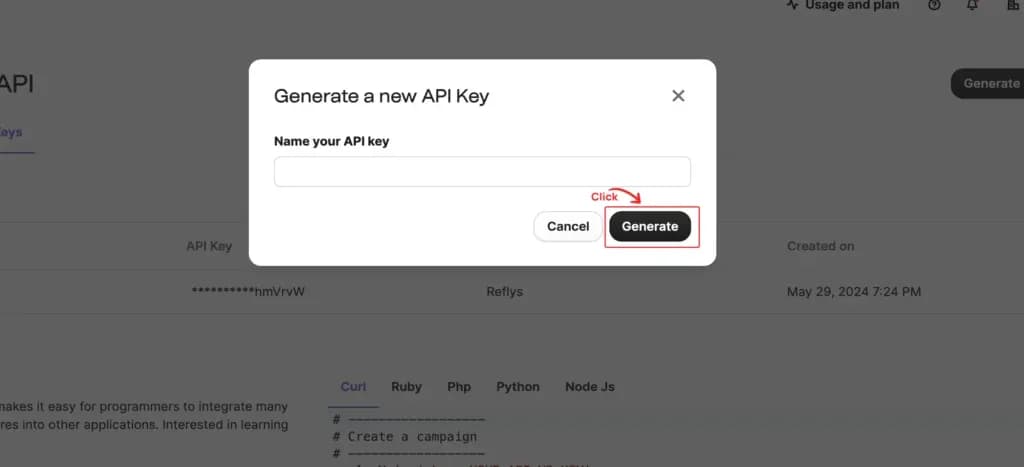
You will be asked to provide a name for your API key. Enter a descriptive name and click the 'Generate' button. Copy your newly generated API key.
Back in Reflys, paste the key into the API Key field on the Brevo card and click Connect.
What the Brevo integration does
Reflys creates a contact in your Brevo account for each Reflys contact that has an email address or phone number. If a contact was synced before, Reflys updates the existing Brevo contact. These fields are sent:
- Email: the contact's email address
- FIRSTNAME: the contact's name
- SMS: the contact's phone number, when available
Syncing runs when a contact is created and when a contact answers a data collection step in an automation. The Brevo card does not ask for a list, so contacts are added to your Brevo contacts without a list.
This card, under Settings > Integrations, syncs contacts. Sending automation emails through Brevo is a separate connection under Settings > Email, on the Brevo tab.
Before you start
- Integrations are included in the Pro and Business plans. On a plan without integrations, the card shows an Upgrade button instead of Connect.
- You need the Owner or Admin role in Reflys. Other roles do not see the Connect and Disconnect buttons.
Troubleshooting
- "invalid api key": Brevo rejected the key. Generate a new API key in Brevo and paste the full value into the API Key field.
- "Private API Key is required": the API Key field was empty when you clicked Connect.
- Contacts not appearing in Brevo: check that Enable Sync is on for the Brevo card and that the contact has an email address or phone number.