
Send the coupon to your contacts
Discount Code Generation for E-Commerce
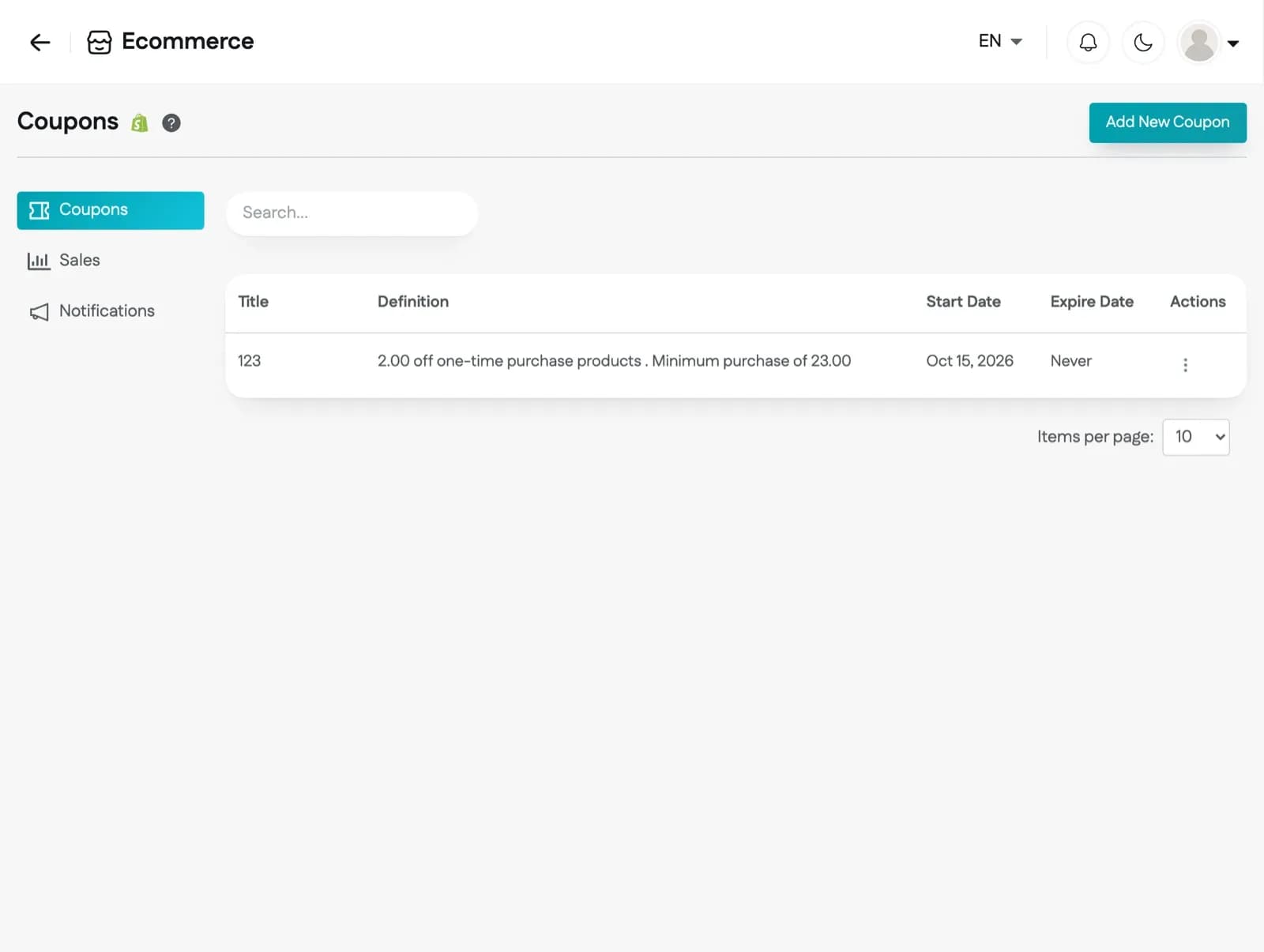
Coupons let you send each contact their own discount code for your Shopify, WooCommerce, or BigCommerce store. Connect your store first. Then go to Ecommerce in the sidebar; the Coupons page opens.
Click on the Add New Coupon button at the top right of the Coupons page.
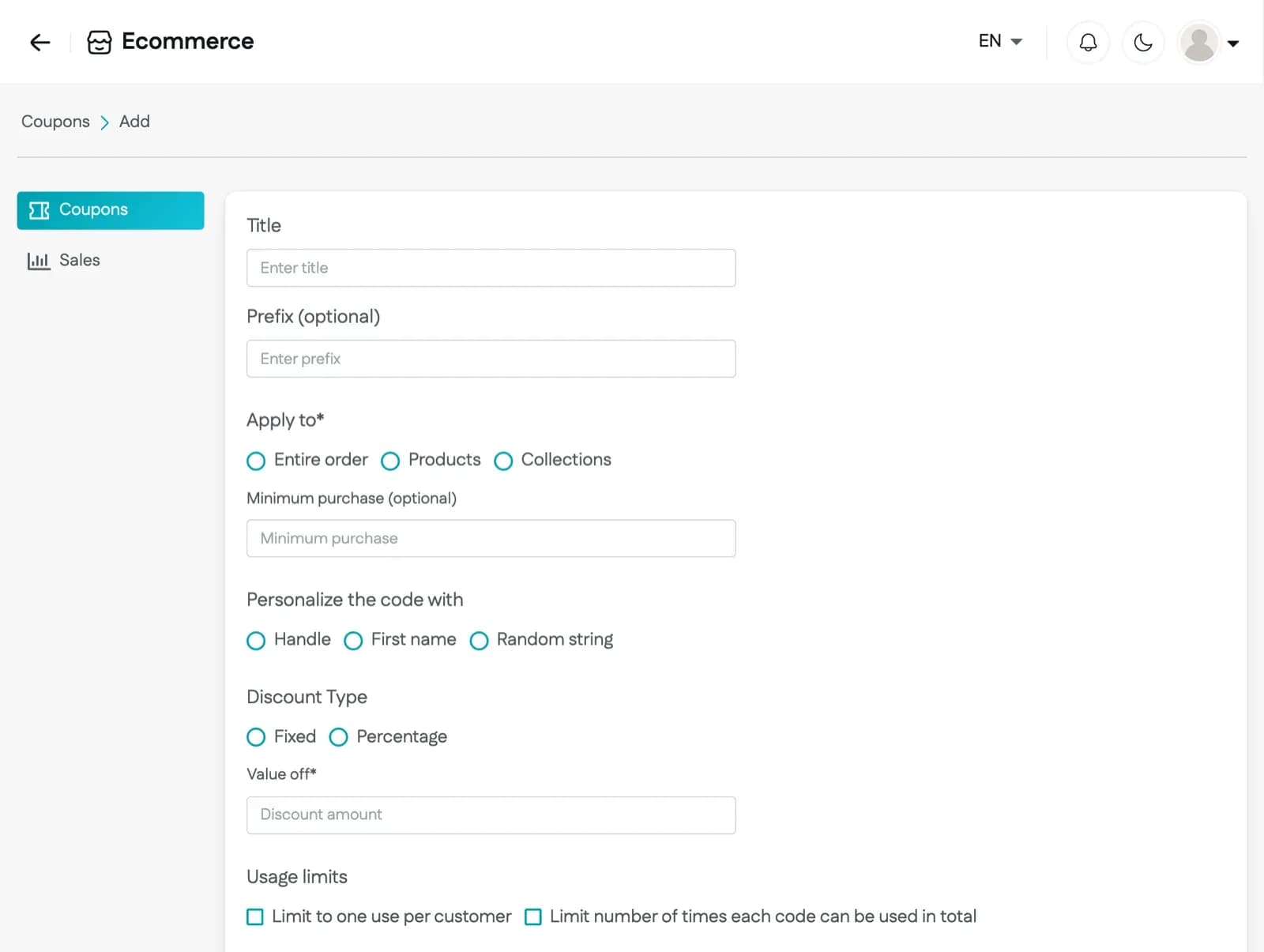
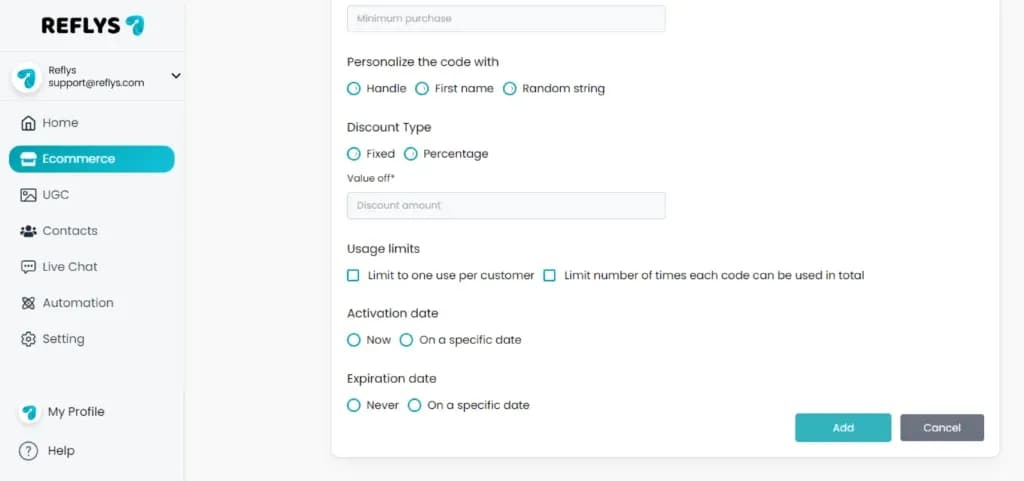
Fill in the fields below and click Add.
Remember! Reflys keeps the coupon settings and creates a separate discount code in your store for each contact. The code is created directly in Shopify, WooCommerce, or BigCommerce, so customers use it at checkout as usual.
- Title: A name for the coupon, 3 to 200 characters. After you save, the title is the only setting you can change.
- Prefix (optional): Added to the start of every code, followed by an underscore, for example SUMMER_JANE4KD82LQ9. Up to 20 characters.
- Apply to: Entire order, selected Products, or selected Collections.
- Minimum purchase (optional): The order amount a customer must reach to use the code.
- Personalize the code with: Handle (the contact's username), First name, or Random string. Reflys adds 8 random characters, so every code is unique. Codes are in capital letters.
- Discount Type: Fixed or Percentage. Enter the amount in Value off.
- Usage limits: Limit to one use per customer, and Limit number of times each code can be used in total.
- Activation date: Now or On a specific date.
- Expiration date: Never or On a specific date.
- Open an automation and add a message step.
- Click Add Coupon, choose your coupon under Choose a Coupon, and click Save.
- Type {{coupon_code}} in the message text where the code should appear.
- Publish the automation. The first time the message goes to a contact, Reflys creates that contact's code in your store and puts it in the message. Each contact gets one code per coupon.
To see the codes created so far, click the Actions menu next to a coupon on the Coupons page and choose View Codes. You see each code, the contact it is assigned to, and their total orders and total sales.
If Klaviyo is connected in Settings > Integrations, Reflys also adds each new code to the contact's Klaviyo profile as the property Reflys_Discount_Code. You can use this property in your Klaviyo email templates.